
Creating a transport
This article will go through all the steps of creating a transport entity in EandoX.
Please note
This is a hands-on guide for creating transports in EandoX. For understanding transport data and its impact on LCA calculations, see the Transportation data article.
Creating a new transport
To create a transport, click on the Transport tab in the sidebar menu. Then click the Add transport button in the top right corner.
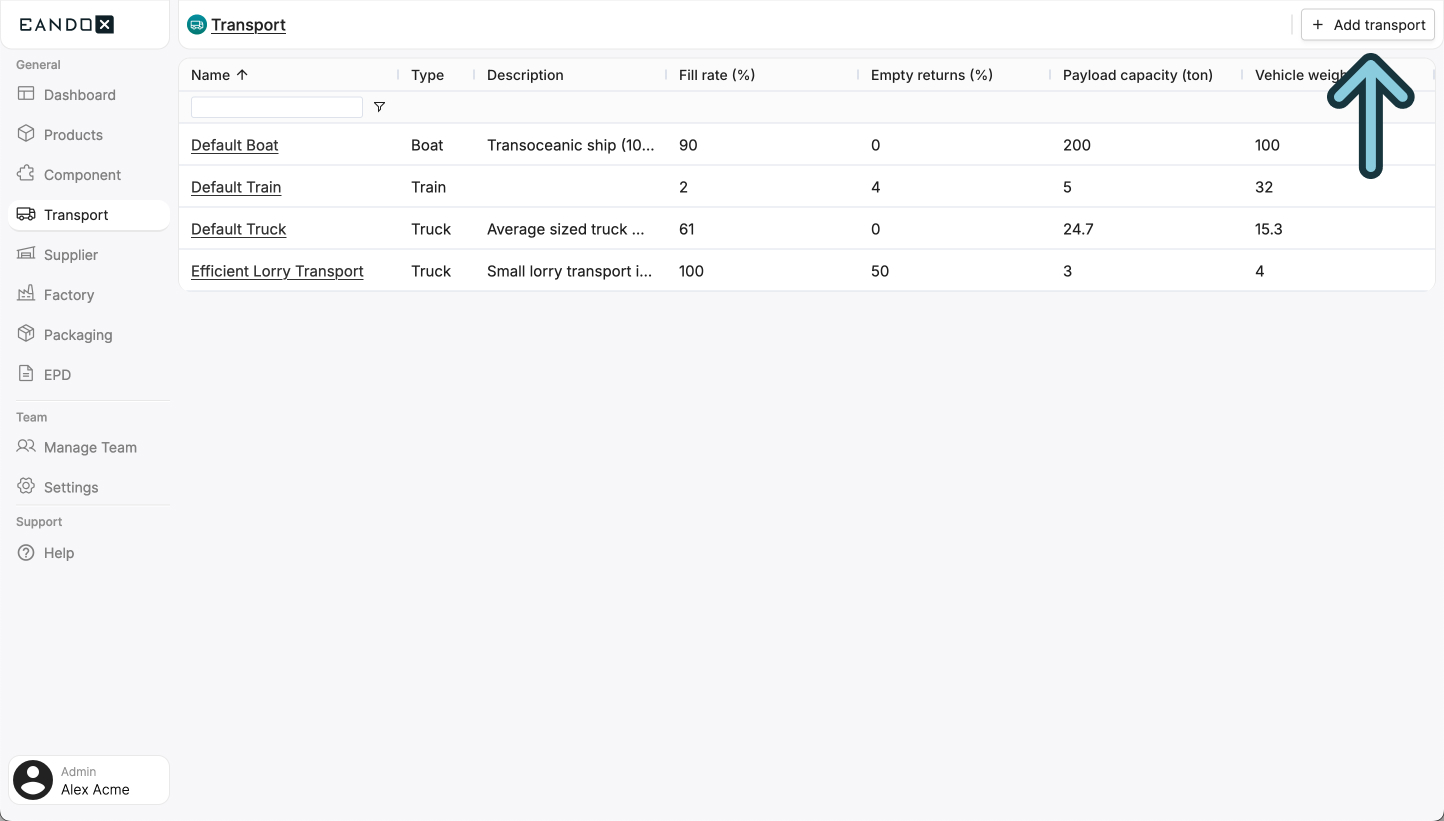
This will open a sidepanel where you can fill out the necessary information about your transport.
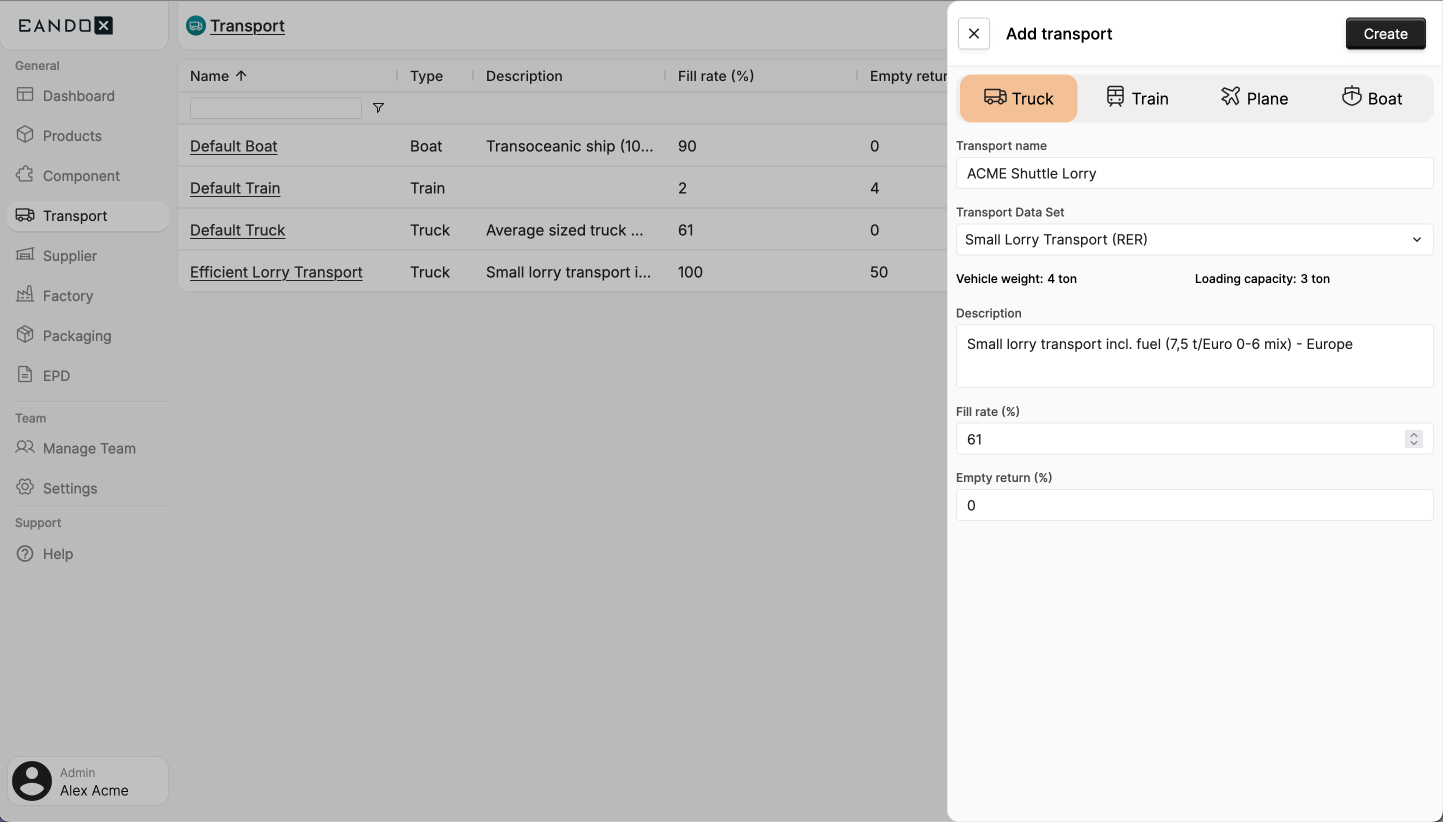
The fields in the sidepanel are as follows:
| Field name | Field description |
|---|---|
| Truck/Train/Plane/Boat | Specifies the vehicle type for this transport entity. |
| Transport name | The name of the transport. |
| Transport data set | Selects a vehicle in the specified vehicle type. This data set describes the vehicles environmental impact, and will be used in the LCA calculations. |
| Description | A description of the transport. |
| Fill rate | The amount of the vehicle's cargo space that is filled during outbound shipping (in percent). |
| Empty return | The amount of the vehicle's cargo space that remains empty during return trips (in percent). |
Click Create in the top right corner to create the transport. This will add the transport to the list of available transports.
Editing a transport
If you want to edit an existing transport, you can navigate to the Transport page in the left navigation menu and click the transport you want to edit.
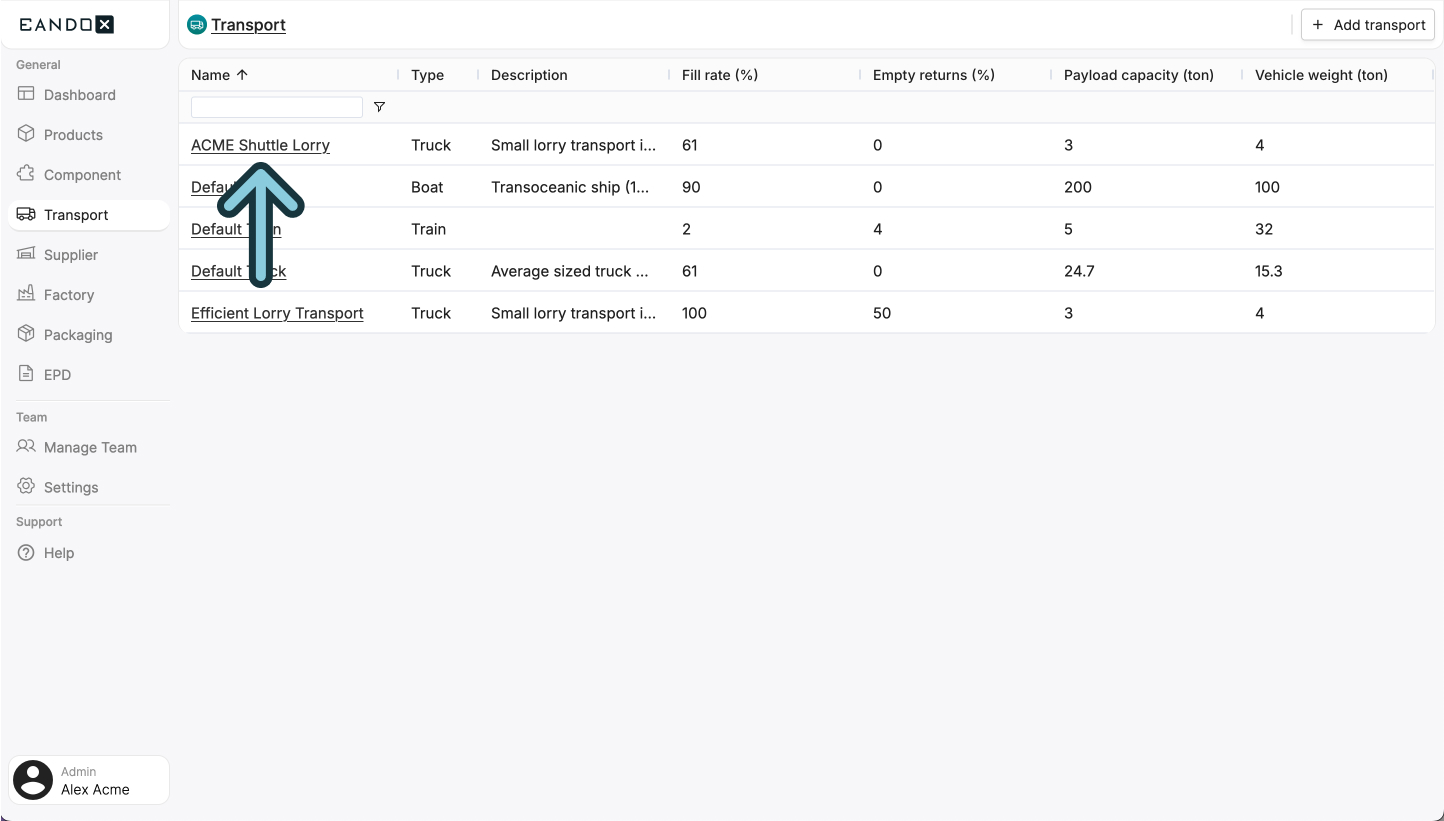
This will take you to the transports page, where you can see and edit the details of your transport. The fields are the same as when creating a new transport.
The transport page
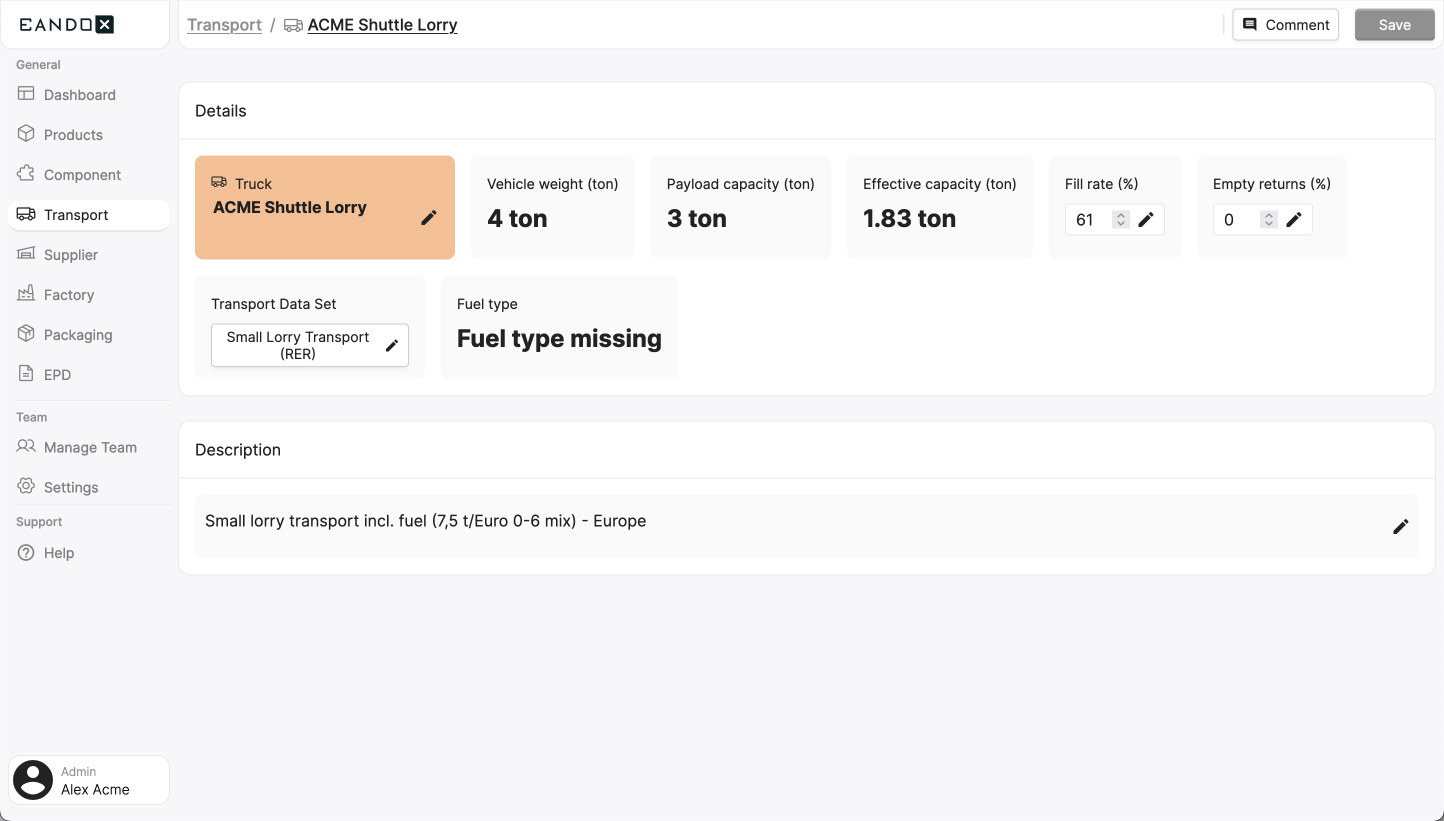
On the transport page, you will see multiple sections:
- Header: Includes the following buttons:
Comment: Allows your team to leave comments on this transport, for internal useSave: Will save the transport
- Details: All of the details of the transport. Some fields are editable, others are calculated based on the selected data set and provided data. These details are the ones described in the "creating a new transport" section.
- Description: Your description of the transport.