
Accessing supplier products
Before using a supplier product in your own products, you'll need to import the supplier product to your library first. This extra step creates a personalized collection of frequently used components, making them easier to find without searching through EandoX's extensive catalog.
Your library works across all your suppliers, so you can organize and access components from different sources in one place.
Add supplier products to your library
Supplier products can be added to your library in two ways:
- Through the
Global librarypage. This is useful if you're not subscribed to any suppliers yet, or browsing around for options. - Through a
Suppliersidepanel on theMy Librarypage. This is useful if you're already subscribed to a supplier and want to add more of their products.
From the Global library
Navigate to the Global library page in the left navigation menu. This will show you a list of all publicly available products in EandoX.
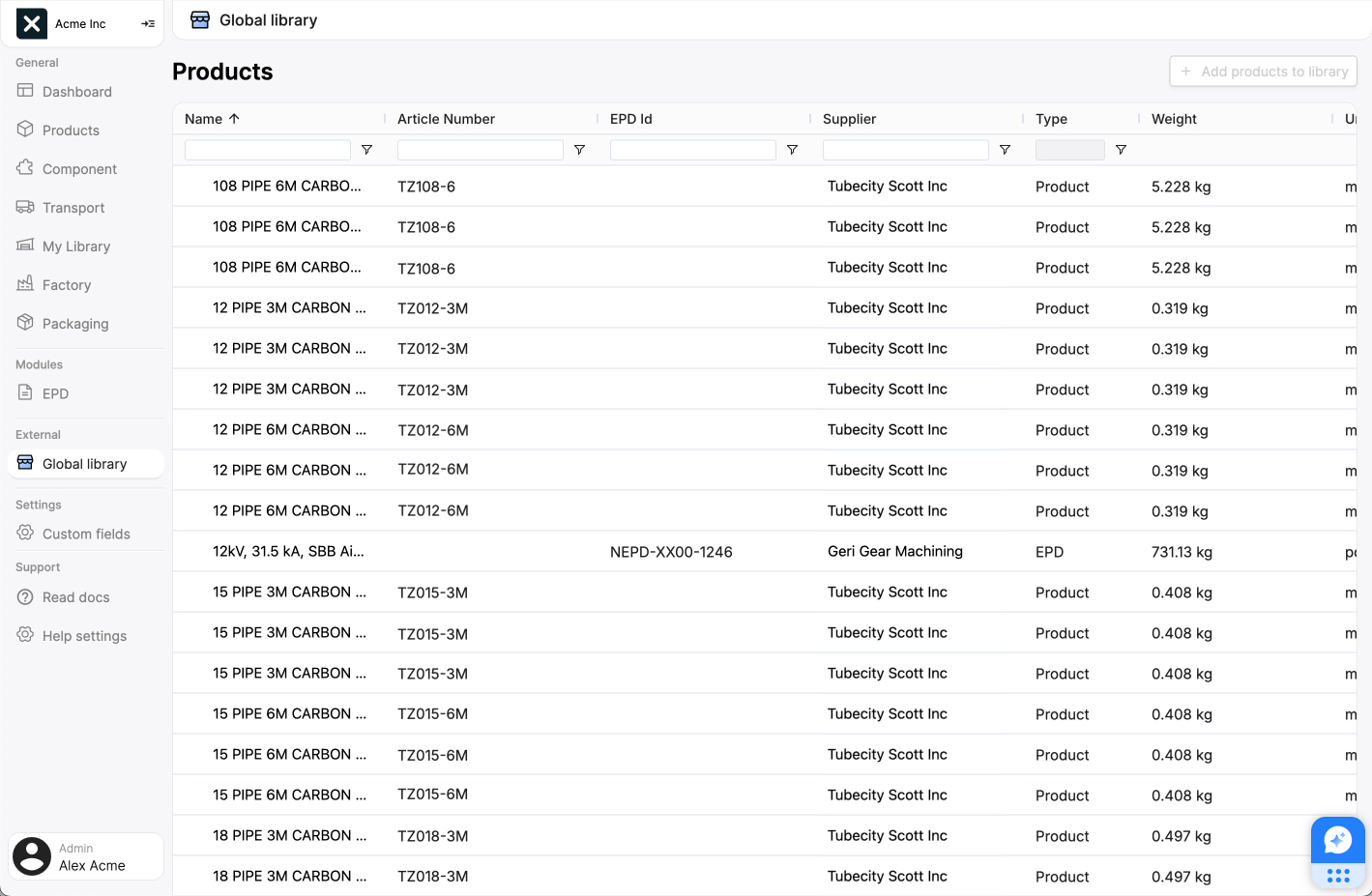
The fields in the list are as follows:
| Field name | Field description |
|---|---|
| Name | The name of the product. |
| Article number | The article number of the product. |
| EPD Id | The EPD identification number for products imported from external Environmental Product Declarations. Only applies to products not created directly in EandoX. Read more about it below. |
| Supplier | The name of the supplier |
| Type | Where the product data originates from. Read more about it below |
| Weight | The weight of one unit of the product. |
| Unit | The unit the product is measured in. |
| Last updated | The date that the product data was last updated. |
Each column has a search field at the top to help you find specific supplier products.
To add a supplier product to your library, hover the item in the list. A checkbox will appear next to the product name. Check the checkbox, then click the + Add products to library button in the top right corner of the page:
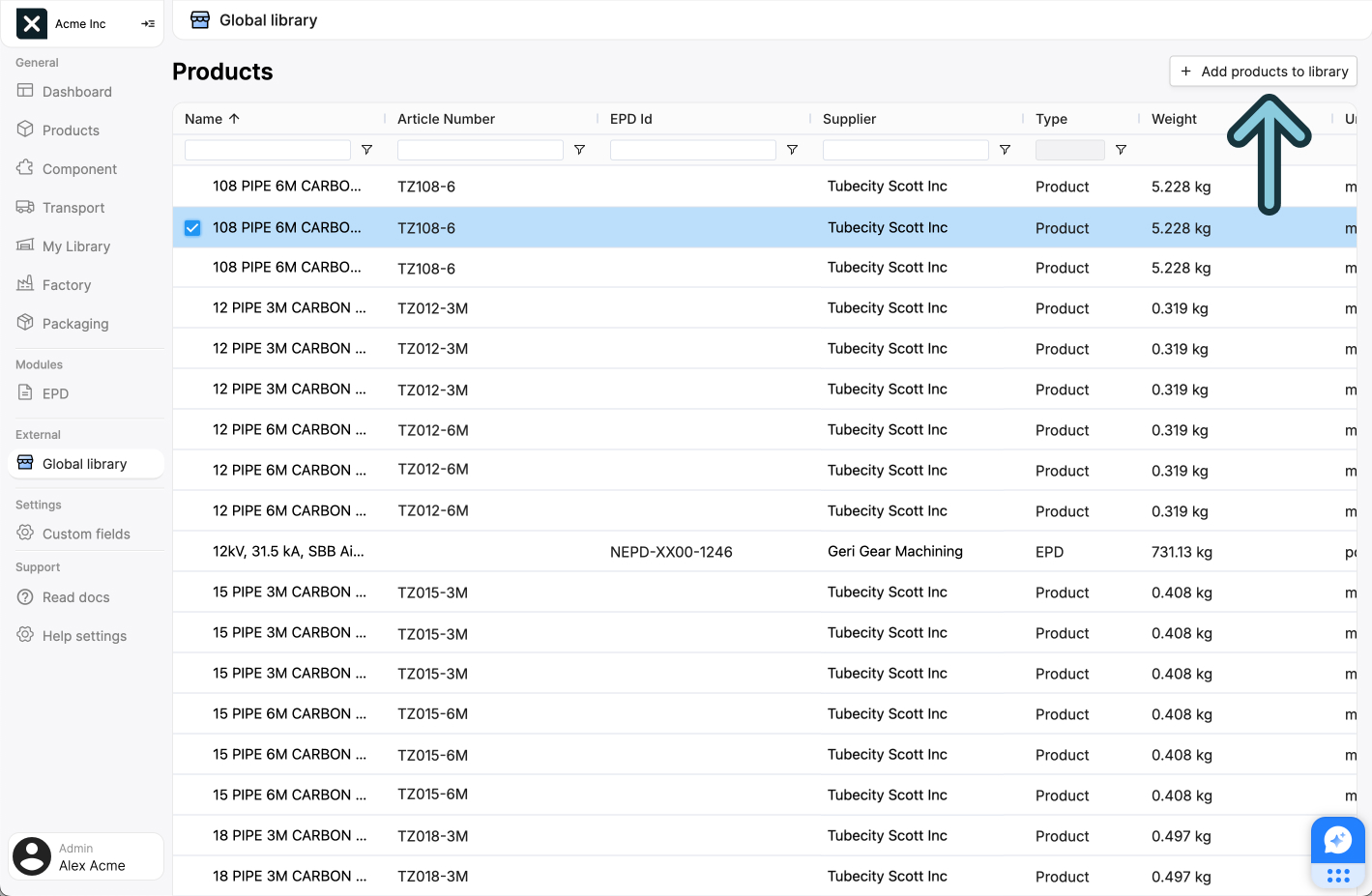
Multiple products can be added at the same time.
No checkbox?
If you can't find a checkbox next to a product name, it means that the product has already been added to your library.
From the Supplier sidepanel
Navigate to the My library page in the left navigation menu. Then click the Suppliers tab. This will show you a list of all the suppliers you are subscribed to.
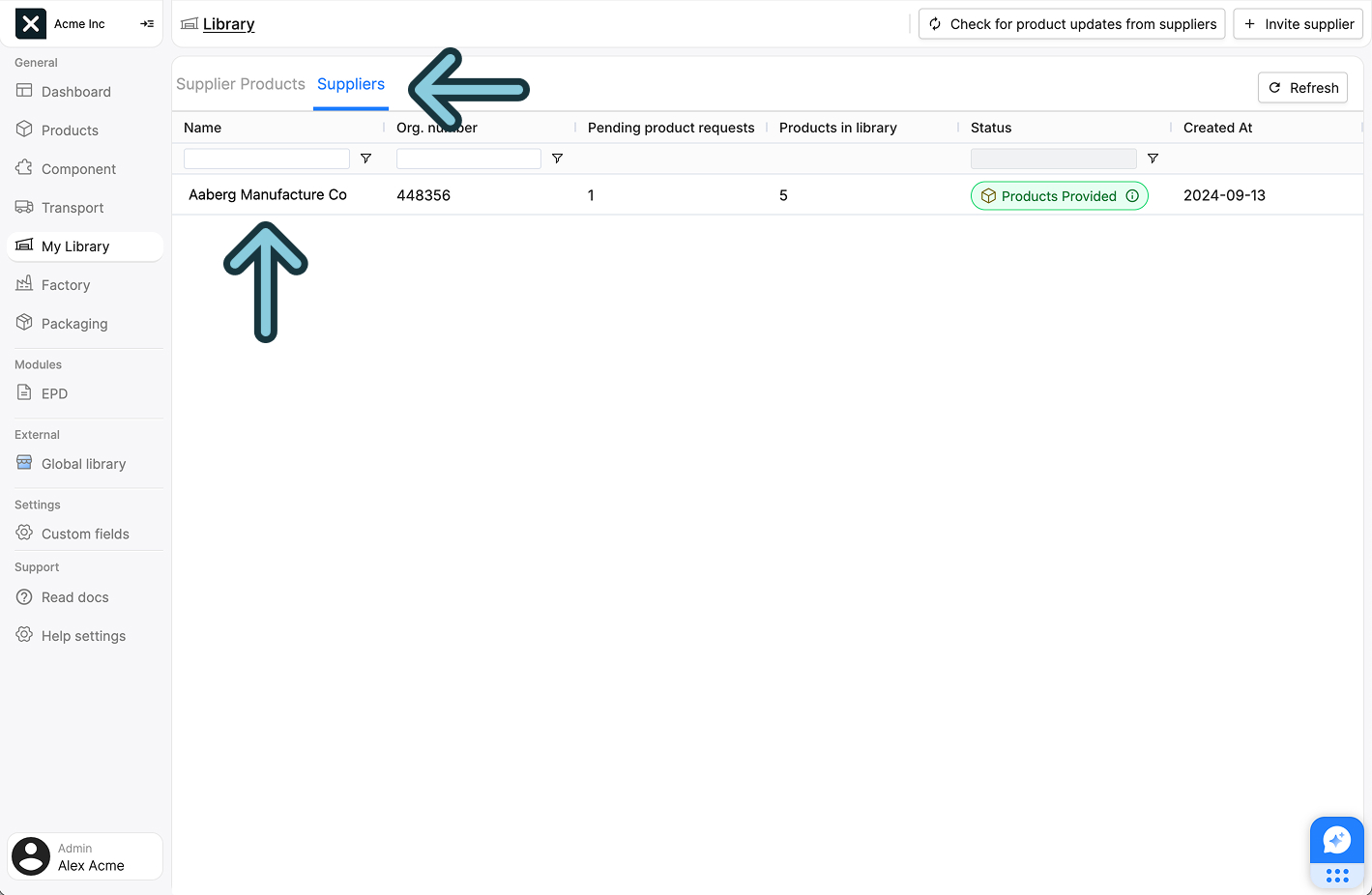
Click a suppliers name to open the Supplier sidepanel:
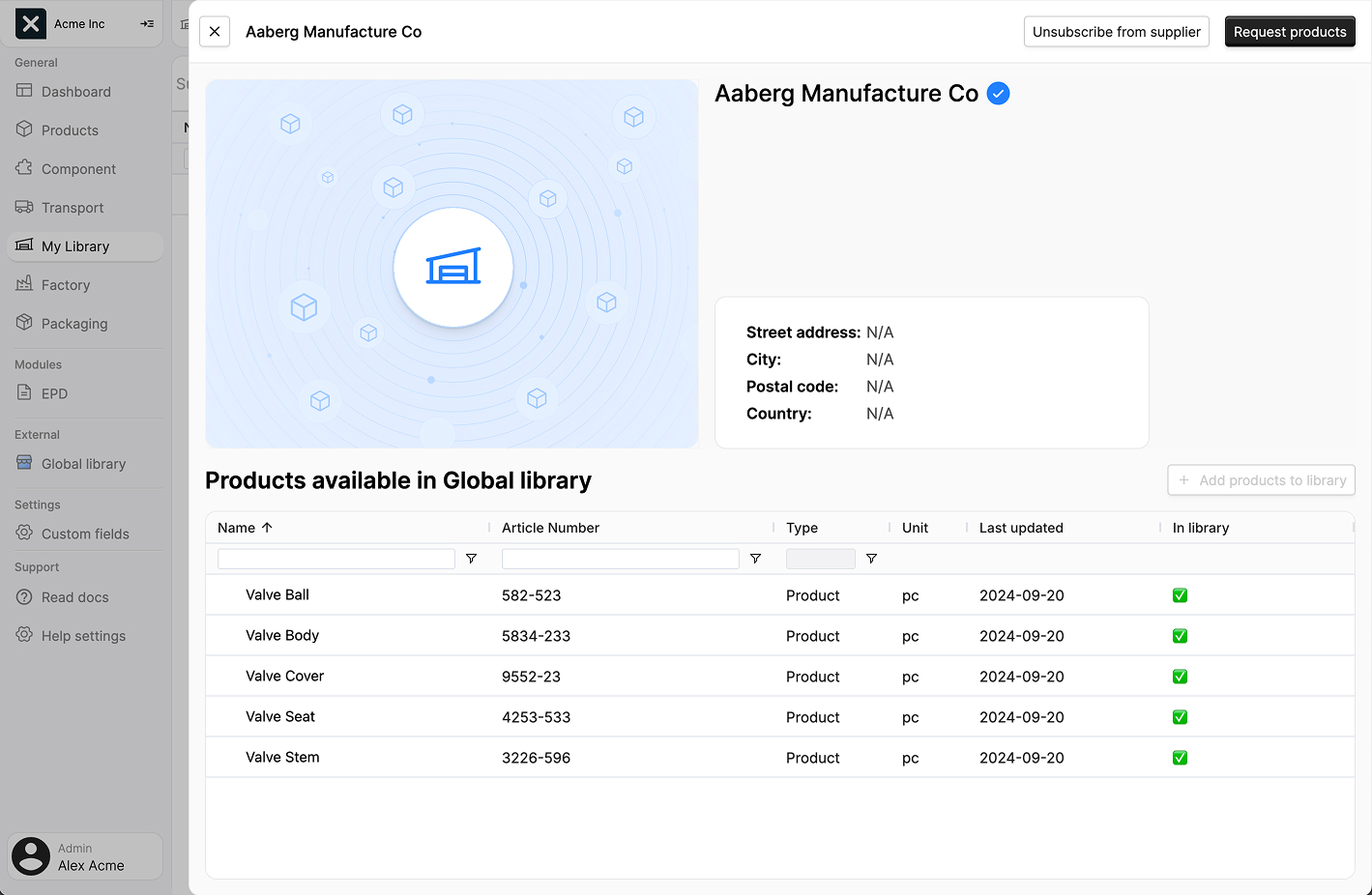
At the bottom if the sidepanel you will find a section that lists all available supplier products. It shows the same fields as the Global library list (see above), plus an In library column indicating which products you've already added.
To add a supplier product to your library, check the checkbox next to its name. Then click the + Add products to library button.
What happens next?
After adding a supplier product to your library, you'll see it on the My Library page. You'll also automatically be subscribed to the supplier and receive notifications about any changes to the product's manufacturing or supply chain.
Further reading
Read more about managing supplier products here.
Read more about managing suppliers here.
Inspecting a supplier product before adding it to your library
Clicking the name of a supplier product will open a sidepanel that shows more detailed information about the product, its environmental impact, and material content.
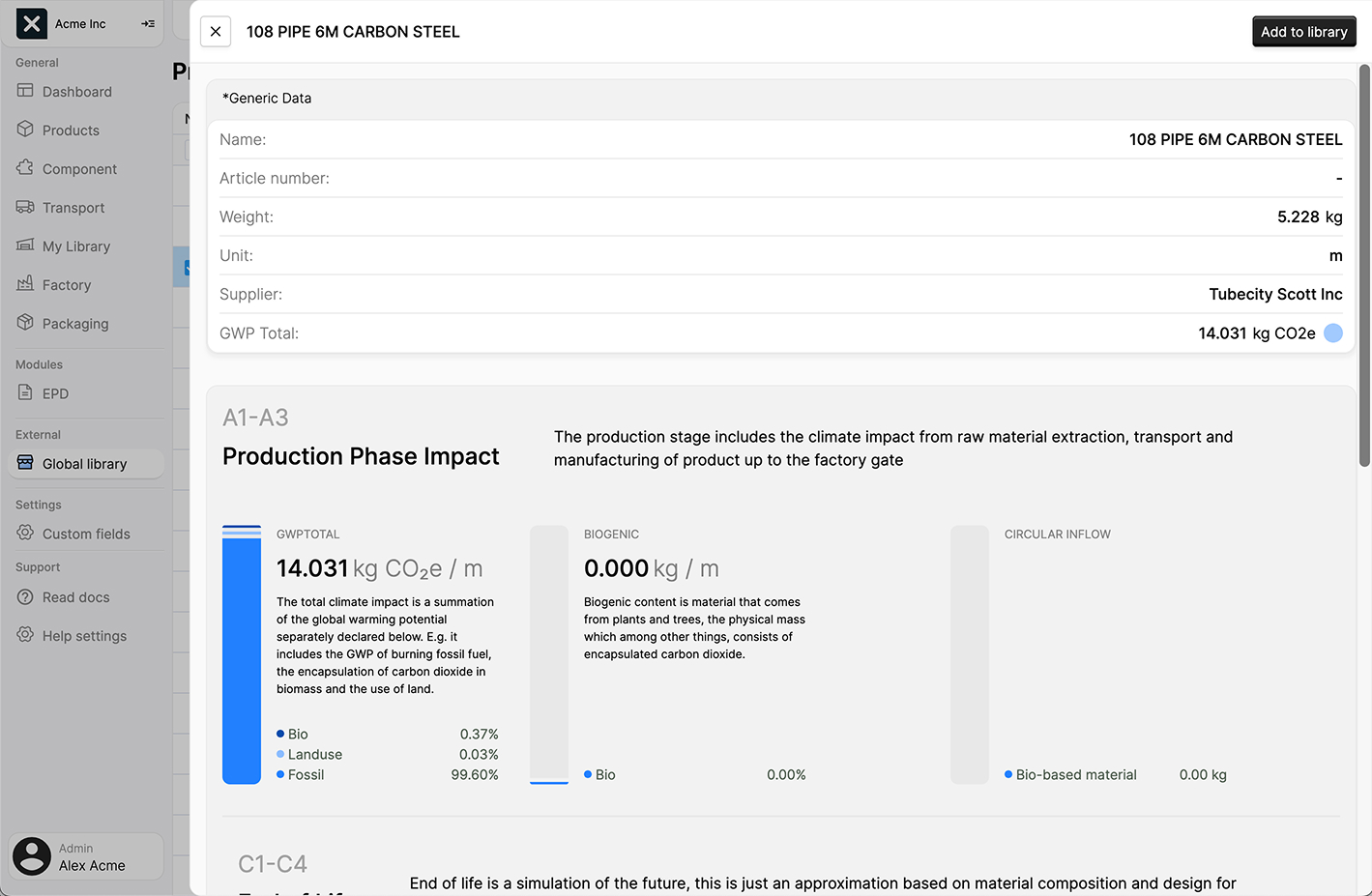
If the supplier product is already in your library, it will have the text (in library) after its name in the sidepanel header.
If the supplier product is not yet in your library, you can add it by clicking the Add to library button in the top right corner of the sidepanel.
Product source
A supplier product's data can come from one of two sources: either directly from suppliers using EandoX, or from publicly available EPDs imported by our team. This source is shown in the type field:
Product: This type indicates that the product data was entered into the system by the supplier through EandoX.EPD: This type indicates that the product data was imported to the global library from a publicly available EPD, by the EandoX team.
There are several key differences between these types:
EPD products come from third-party verified public databases, giving them strong industry credibility. When you create an EPD in EandoX, using these pre-validated components speeds up verification since reviewers only need to focus on your product's unique elements.
However, products with the Product type typically contains more detailed data, and could therefore lead to more accurate LCAs. This granularity may also give you more insight into the environmental impact of your product.
Importing EPD's
EPDs can only be imported by the EandoX team. If you have an EPD you'd like to have available in the Global Library, please contact us at support@eandox.com.