
Custom fields
Custom fields let you store extra product data outside of EandoX’s standard data set or LCA. These fields are often used for internal details like CPC codes, the name of the person who added the product to your catalog, or the supplier’s name (if they’re not connected to EandoX).
Please note
Custom fields are only available for the Product, Component, and Packaging entities.
Adding data to custom fields
This page is about creating and managing the custom fields that will be available in your products.
If you want to add data to the custom fields of your products, you can read about it here.
Creating a new custom field
Navigate to the Settings page in the left navigation menu. And click the Add field button in the top right corner.
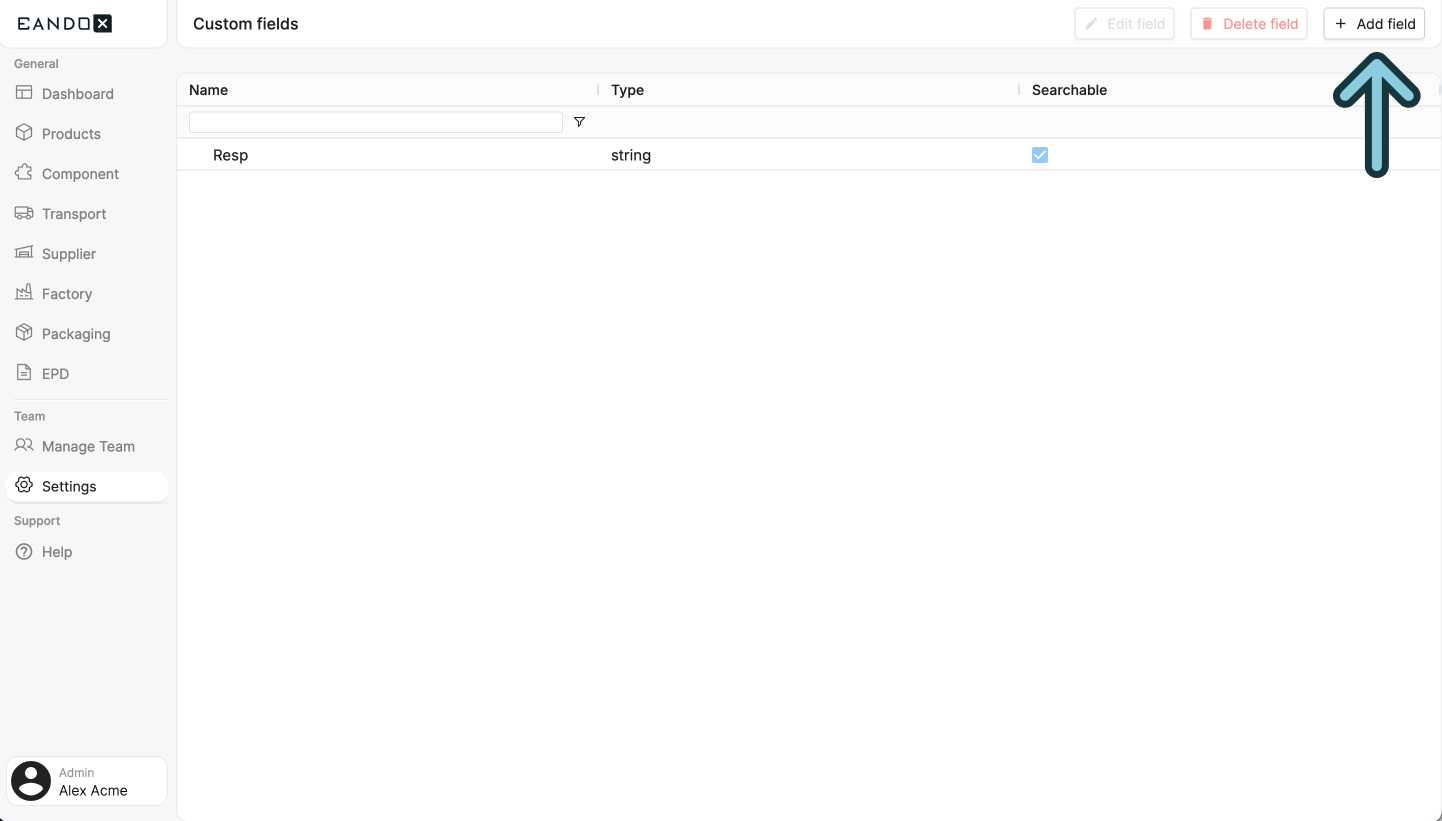
This will open a sidepanel where you can create a new custom field.
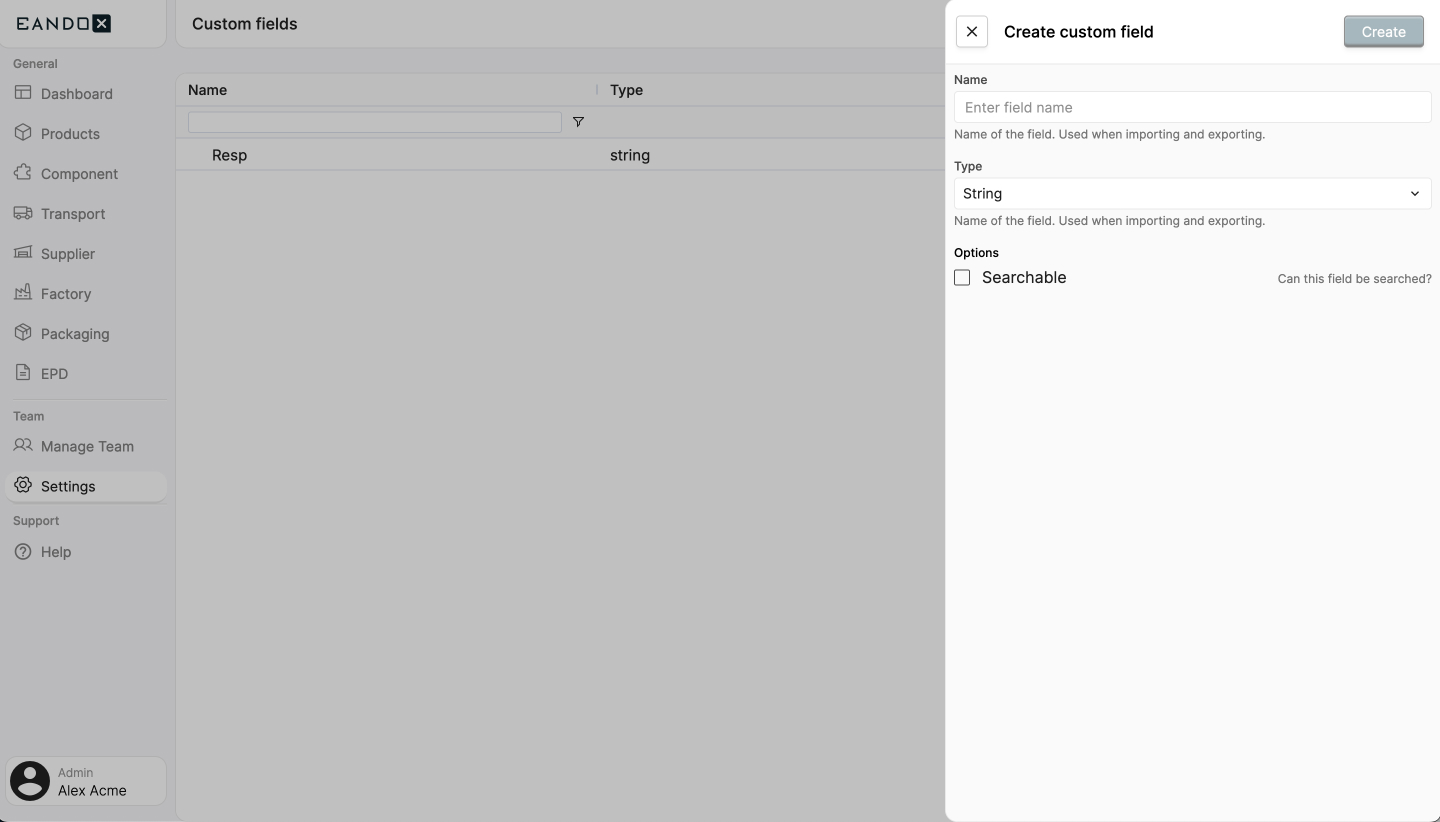
The fields in the sidepanel are as follows:
| Field name | Field description |
|---|---|
| Name | The name of the custom field. This will also be used as its identifier, so make sure it's unique. |
| Type | The data type of the custom field. |
| Searchable | Whether the value in the custom field should be used in the search results in the product list. |
Click the Create button to create the custom field. You will now be able to add data to the custom field for every product.
Further reading
Read more about adding data to the custom fields in products here.
Editing a custom field
To edit a custom field, select it in the list and click the Edit field button. This will open up a sidepanel where you can edit the field.
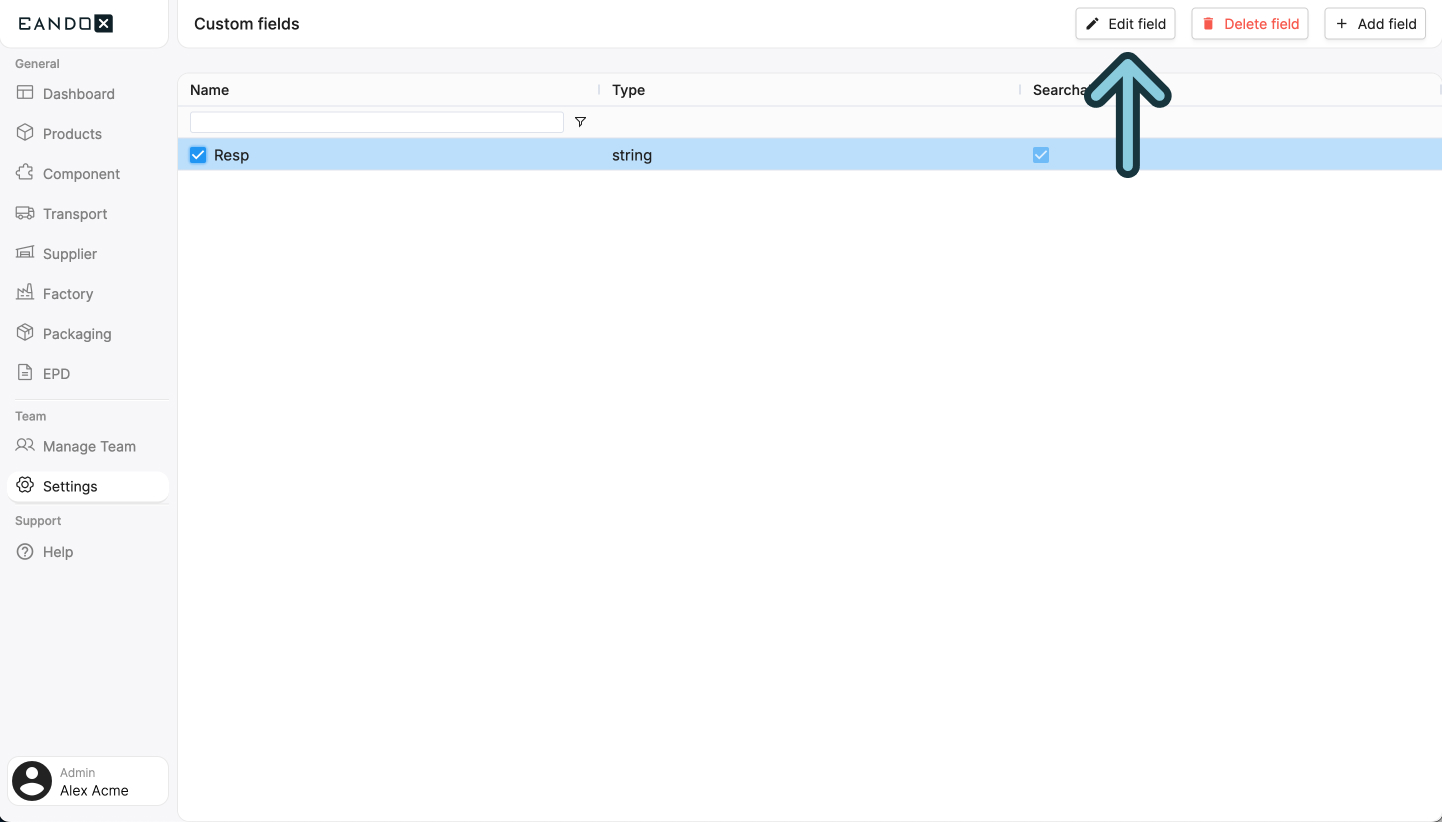
Please note that you can only edit some of the properties of the custom field.
Deleting custom fields
If you want to remove a custom field, you can do so by selecting it in the list and clicking the Delete field button. This will remove the custom field from the list and all the products. All associated data will be deleted.