
Comparing entities
EandoX features side-by-side comparisons of the environmental performance of your components, materials, and packaging. This allows you to quickly view sustainability metrics, making it easier to make informed choices to reduce environmental impact across your supply chain.
Accessing comparisons
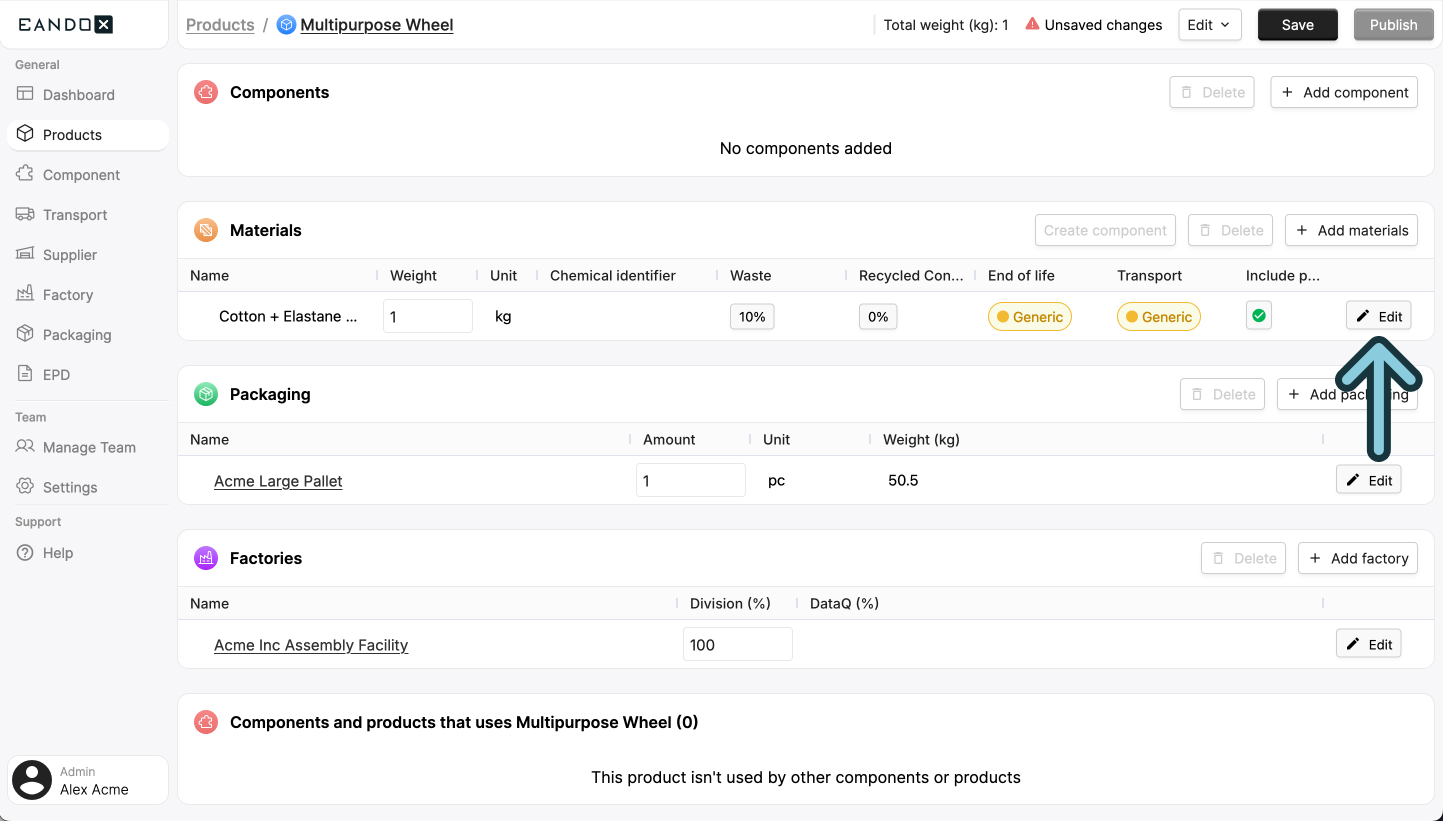
To compare entities, you need to be on the page of a single Product, Component or Packaging. On this page, find the entity you want to compare, and click the Edit button.
Empty list?
One of the entities you want to compare has to be added to the Product, Component or Packaging you are currently viewing. There is no way to compare entities outside of this context.
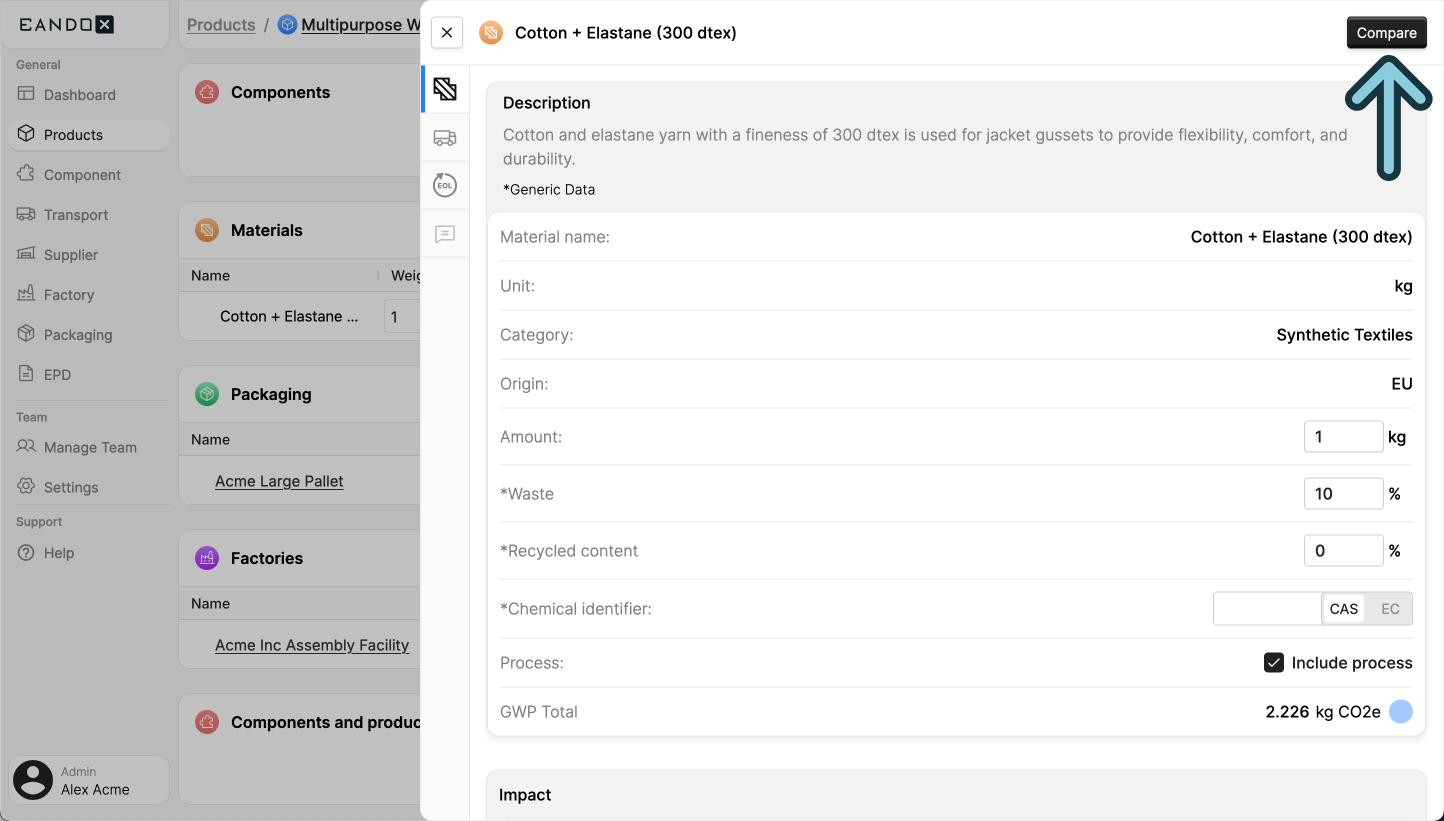
This will open a sidepanel that shows all the entity properties. You can then click the Compare button in the top right corner.
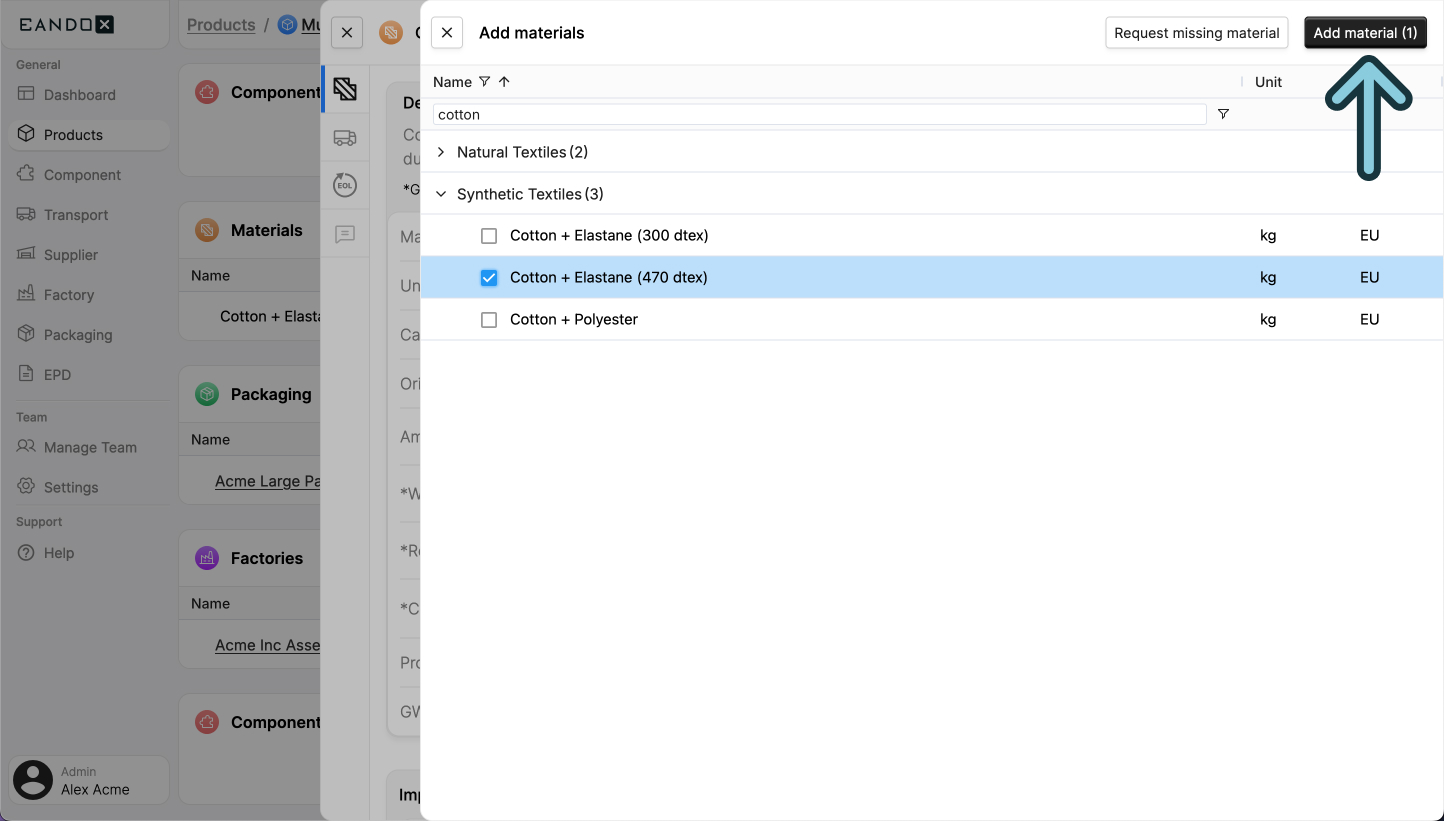
This will open a sidepanel where you can search for, and select the entity you want to include in the comparison. Multiple entities can be selected at once.
When you have done your selection, click the Add button in the top right corner.
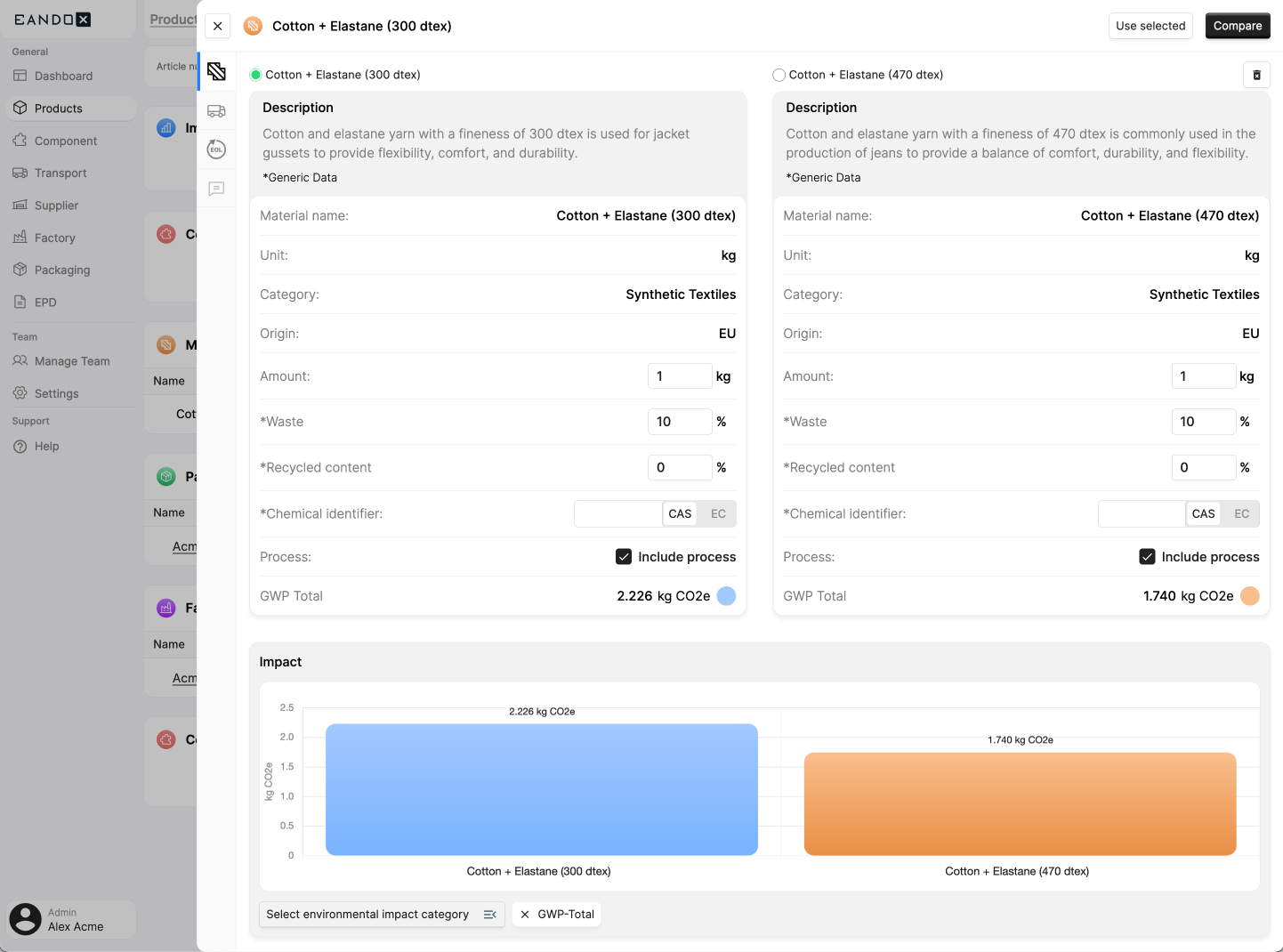
You will be brought back to the previous sidepanel. It will now show both the original entity, and the ones selected for comparison.
Impact graphs
One of the most useful features in this view is the impact graph.
Read more about the impact graph here.
Removing an entity from the comparison
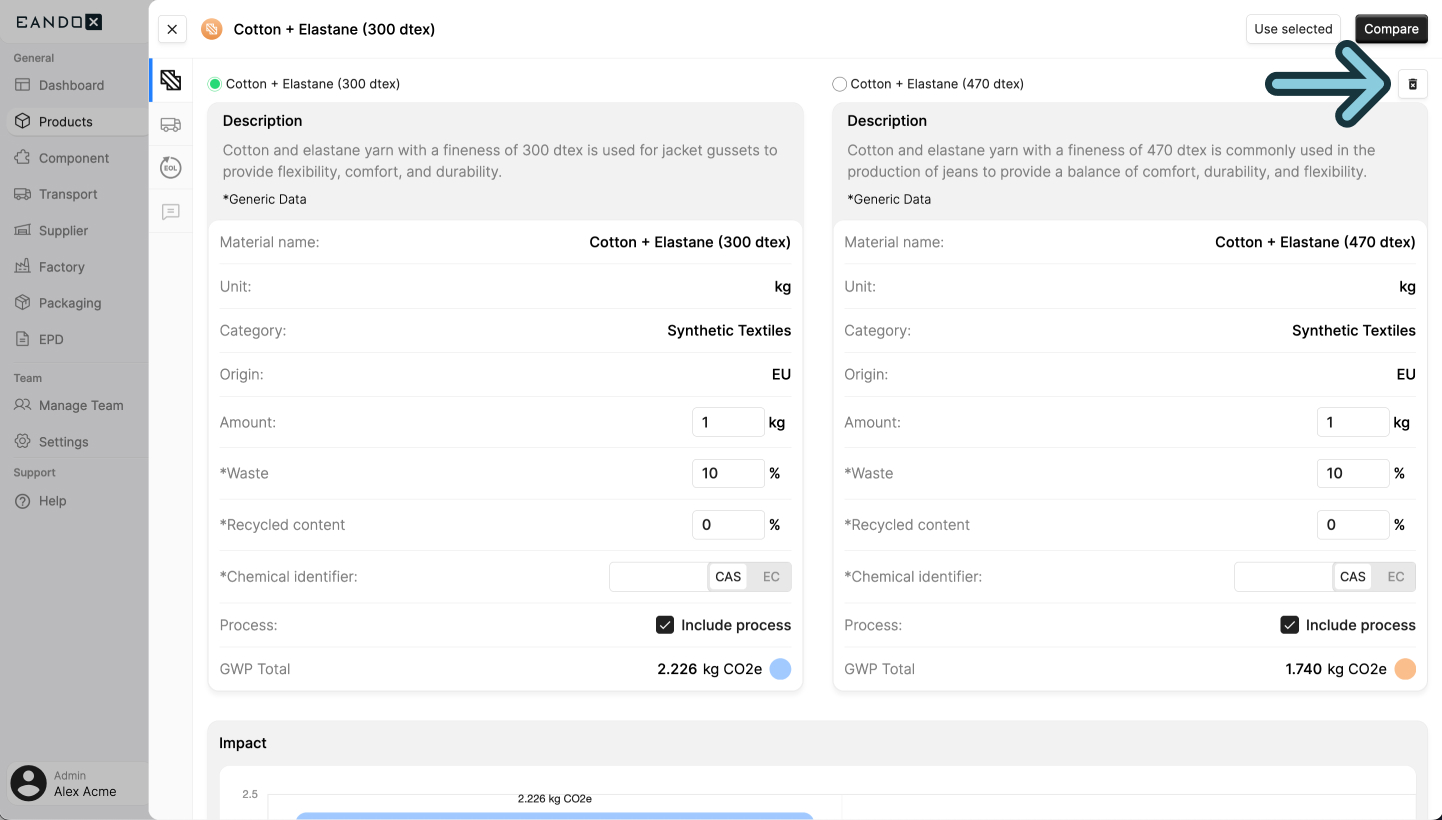
You can remove an entity from the comparison by clicking the Remove button in the top right corner of the entity.
Changing the added entity
Sometimes, the entity you’ve added to your Product, Component, or Packaging isn’t the best fit, and another option in the comparison list would work better.
To replace it, check the box next to the preferred entity, then click the Use selected button in the top right corner.
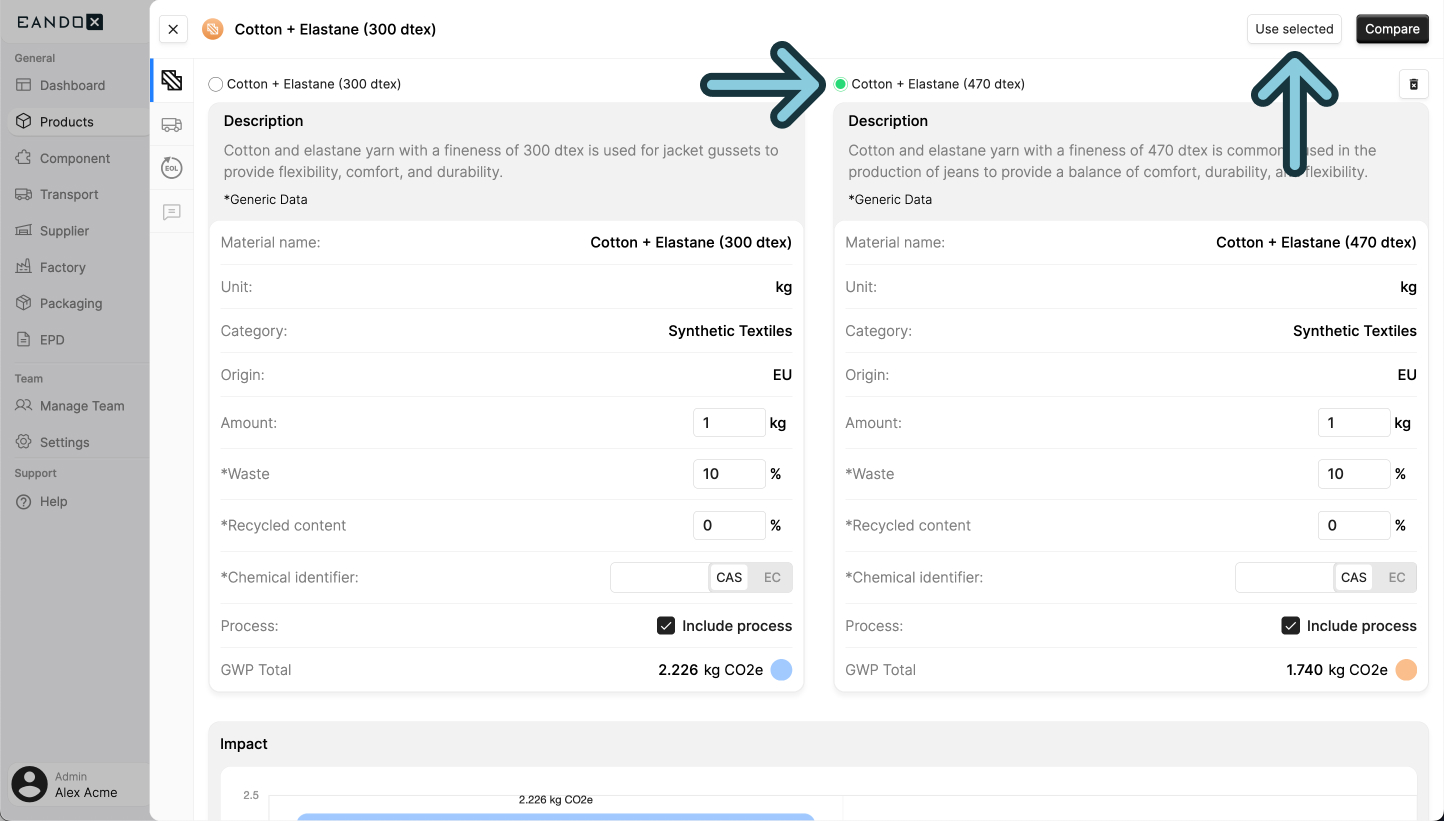
This will close the sidepanel and the new entity you selected will take the place of the old one in the table of added entities.
