
Managing suppliers
This page is an in-depth documentation on how to manage the suppliers in your library. It will give you an understanding of the Suppliers tab on the My Library page.
Subscribing to a supplier
Adding a supplier product from the Global Library automatically subscribes you the products supplier.
To subscribe to a supplier without adding any of their products, use the Invite supplier process. If the supplier is already a part of EandoX, this will simply subscribe you to them instead of sending an invite.
See your suppliers
Navigate to the My Library page in the left navigation menu and click on the Suppliers tab. This will show a list of all the suppliers you are subscribed to, as well as any pending supplier invites.
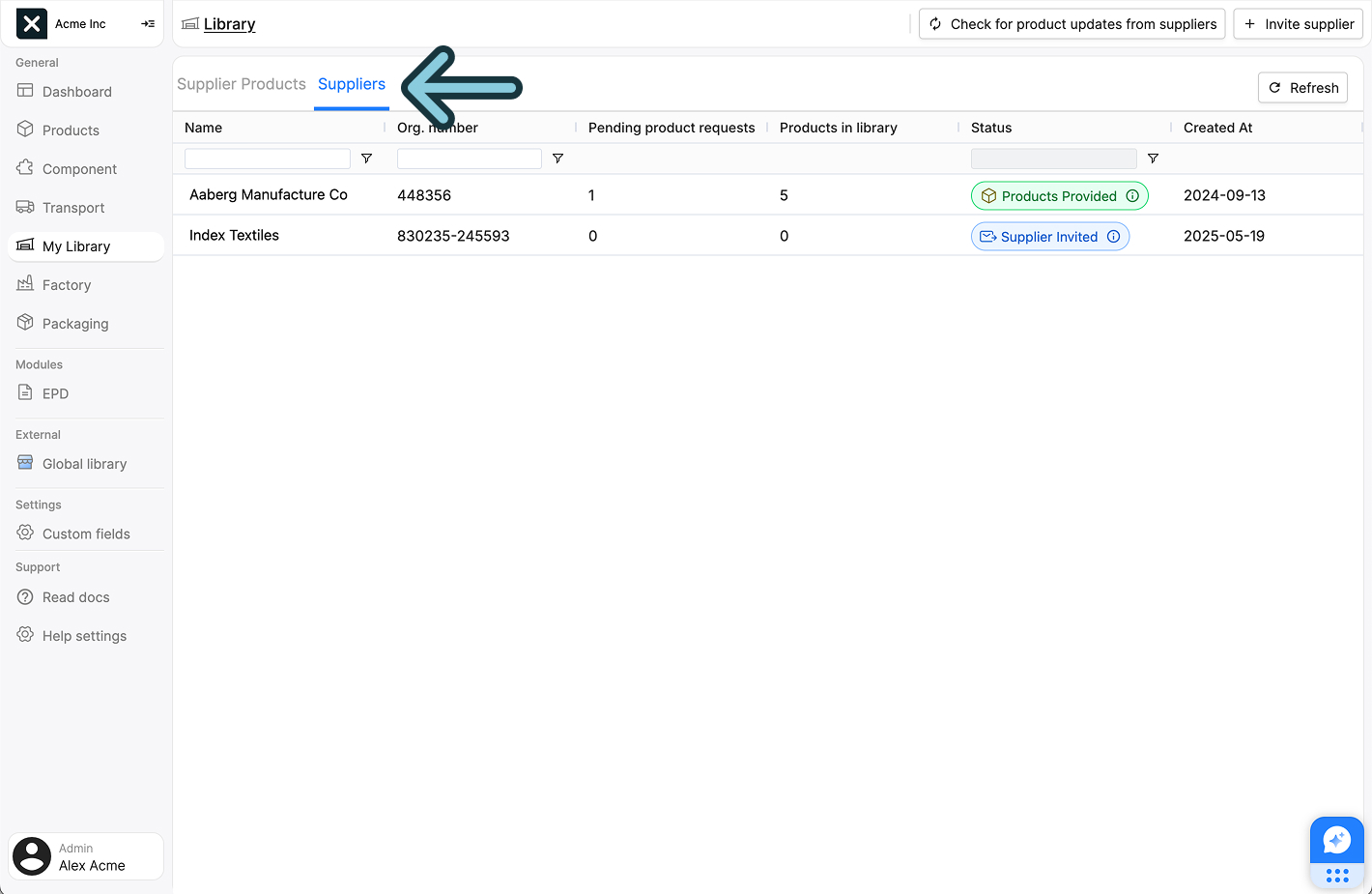
The list features the following columns:
| Field name | Description |
|---|---|
| Name | The name of the supplier. |
| Org. number | The organization number of the supplier. |
| Pending product requests | Number of pending product requests with this supplier. |
| Products in library | Number of supplier products from this supplier in your library. |
| Status | The status of the supplier. Read more about it below. |
| Created at | The date when you first subscribed to this supplier. If the supplier has a status of Pending this will instead be the date when you first sent them an invite. |
Sorting and filtering
The suppliers can be sorted by clicking on the column headers. Clicking on the same column header again will reverse the sorting order.
Some of the columns can be filtered by typing in the input field below the column header. The list will be filtered as you type.
Refreshing the list
At the top of the page you can find a Refresh button. This will refresh the list of suppliers, and make sure that you have the latest information about them.
Caching
The list is cached for performance, but automatically updated with regular intervals. A manual refresh is only needed in rare cases, if you can't see recent changes you know should be there.
The supplier sidepanel
To see the details of a supplier, click on the name of the supplier in the list. This will open a sidepanel with all available data for the selected supplier:
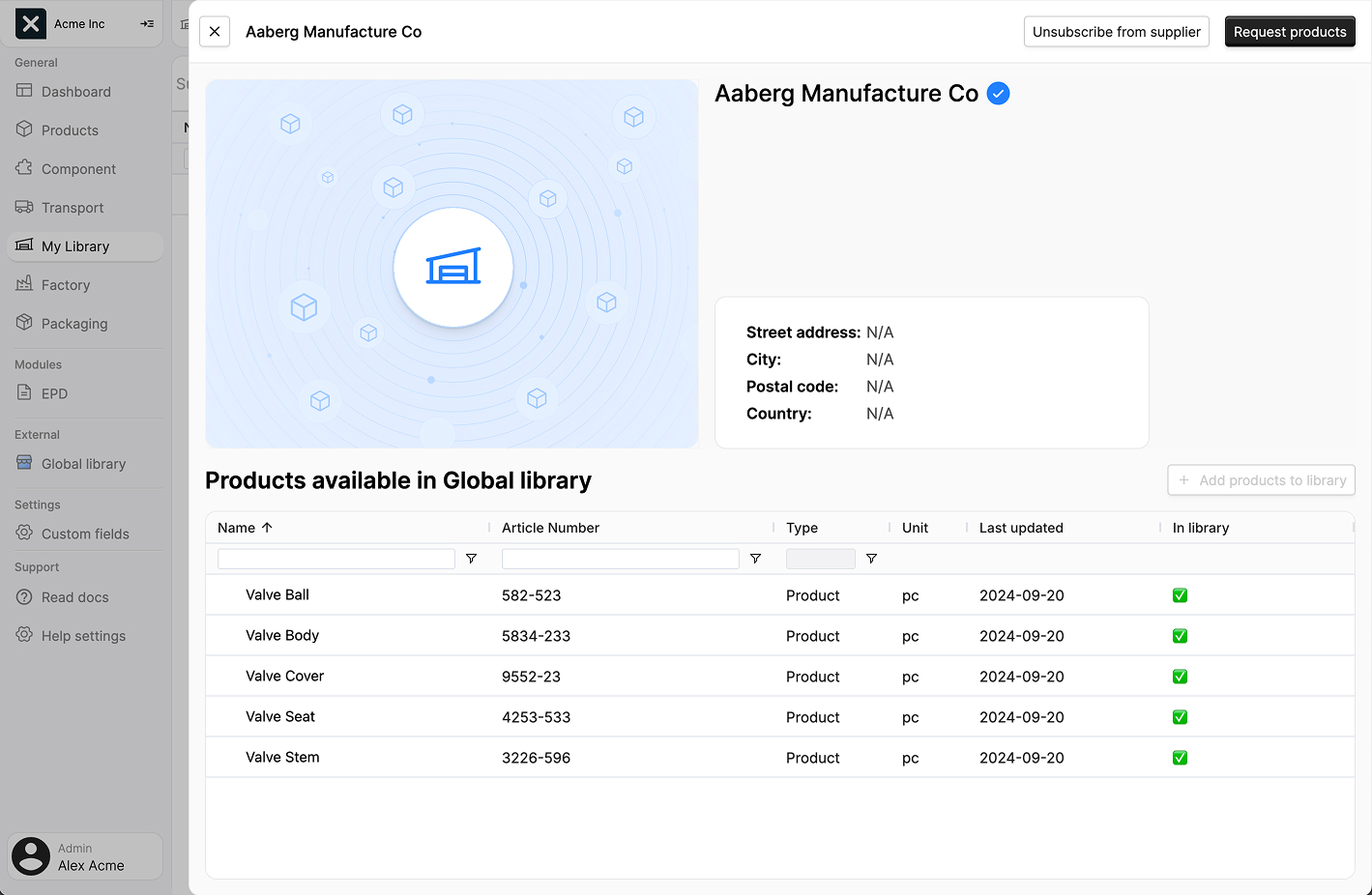
This sidepanel shows the data of the supplier, including basic information and related products.
Data: This section shows the basic data for the supplier, such as the name and organization number.
Products: This section lists all the products that are available from this supplier. The list features the following fields:
| Field name | Description |
|---|---|
| Name | The name of the supplier product. |
| Article number | The article number of the supplier product. |
| Type | Where the product data originates from. Read more about it in the supplier product docs. |
| Unit | The unit that this supplier product is measured in. |
| Last updated | The date that the product data was last updated. |
| In library | Indicates whether you have added this product to your library. |
Unsubscribing from a supplier
To unsubscribe from a supplier, open the supplier's sidepanel. At the top right of the sidepanel you will find an Unsubscribe from supplier button.
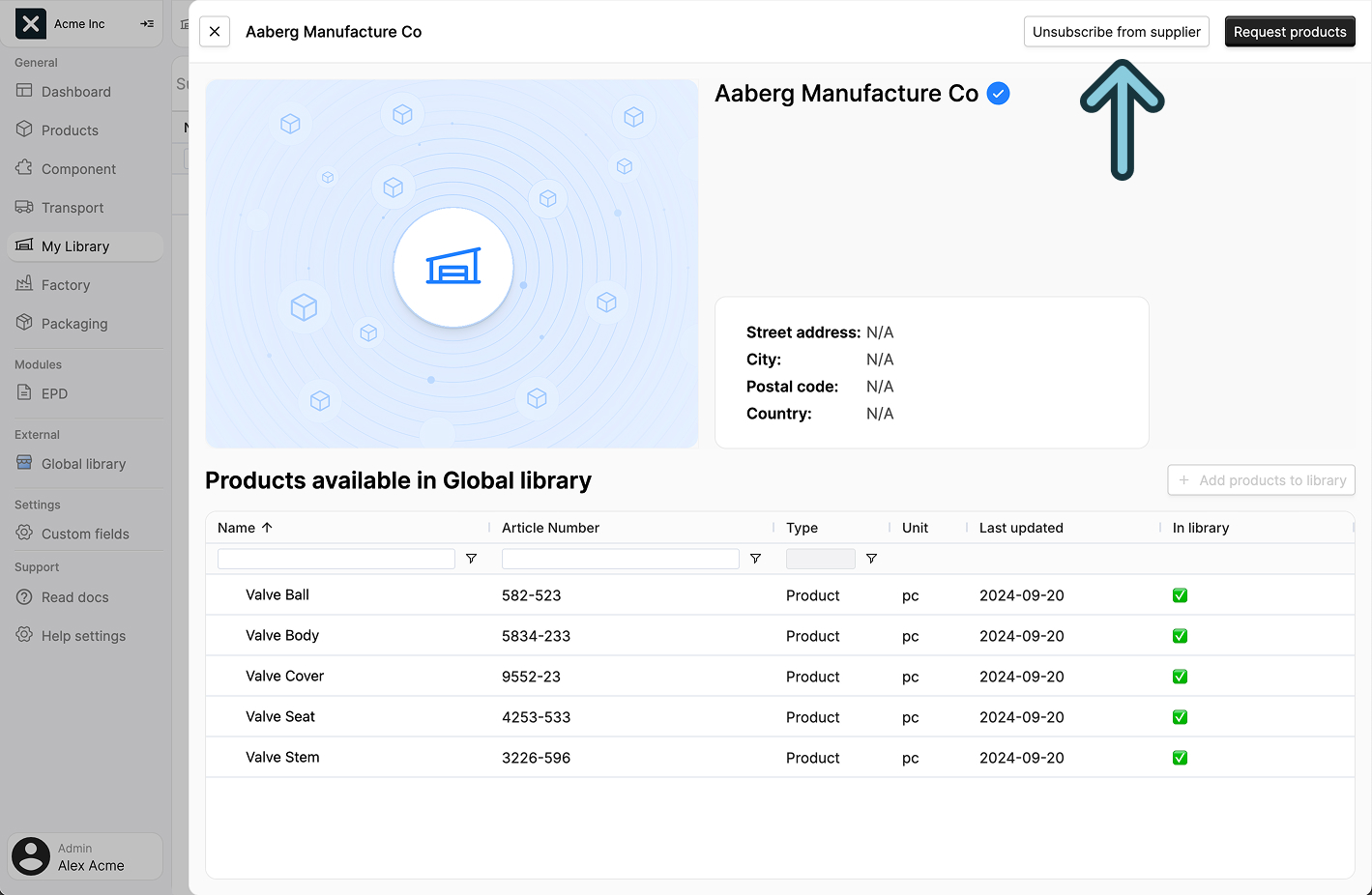
Click it to unsubscribe from the supplier. A confirmation dialog will appear, asking you to confirm the action.
You can only unsubscribe from unused suppliers
You can only unsubscribe from a supplier if none of their products are used in your products. The unsubscribe action will fail if any products are still in use.
To check and remove supplier product dependencies:
- Go to the
Supplier Productstab and filter by supplier name - For each product, open its sidepanel and check the Usage section
- Remove the supplier components from each listed product
- Return to My Library to unsubscribe from the supplier
Supplier status
A supplier can have one of five states:
Supplier invited: You have recently invited the supplier to join EandoX.Not responded: The supplier hasn't responded to your invitation within two weeks of sending it.Signed up: The supplier has accepted your invitation and signed up to EandoX. You are subscribed to them.No products provided: The supplier has signed up to EandoX but hasn't added any products within two weeks of joining. You are subscribed to them.Products provided: You are subscribed to the supplier, and they have provided products that you can use.
Inviting suppliers
Read more about inviting suppliers here.