
Supplier quickstart
Welcome to EandoX!
You're likely here because a customer invited you to help optimize their supply chain operations. We're excited to have you on board and look forward to collaborating to make a positive environmental impact.
We are thankful for your participation
Being an EandoX supplier is free, as your participation is of great benefit to our users.
We are happy for your contribution and look forward to working with you. Please contact us at supplier@eando.se if you have any questions not covered in this quickstart.
What is EandoX?
EandoX is a platform designed to streamline the Life Cycle Assessment (LCA) process for manufacturers and suppliers.
The platform allows you to enter your products, and attach all data on materials, packaging, transport and factories. This information generates LCAs that can be shared with your customers, enabling them to create accurate LCAs for their own products without requiring you to share any internal manufacturing data.
Data security
All your product data is stored in a single-tenant database, accessible only to your company. This design ensures that your internal data remains secure and private, with no sharing at the foundational level.
Another benefit is reusability and composability: any updates to the manufacturing data of a product will automatically refresh the LCAs wherever that product is used, both within your catalog and in your customers’ products.
By analyzing product and process data, you can pinpoint areas for improvement and implement sustainable practices.
Quick links
Here are some helpful links if you already have an account, and want to get started quickly:
This is just the beginning
These articles may not cover all EandoX features, but they offer a solid starting point for you as a new supplier.
Suppliers have access to the same features as all other users, so all other documentation is relevant to you as well. Feel free to explore them at your convenience.
EPDs in EandoX
EandoX also has support for importing EPDs. If your company has any published EPDs you would like to share with your customers, please contact us at support@eandox.com and we will assist you in importing them.
Creating an account
The most common way to create a supplier account is through an invitation from one of your customers. You’ll receive an email containing a link to set up your account. Clicking the link will take you to the account creation page, where you can fill out the signup form with the required information.
No EandoX customers yet?
If you don't have any customers using EandoX yet, but still want to be a supplier in EandoX, you can contact us at supplier@eando.se. We will assess your case and assist you in getting started.
Responding to a customer request
Whenever there is a new request from a customer, you'll receive an email notification about it.
You can then log in to your account and respond to the request.
If you have any requests you will see a button labeled Fulfill product requests in the top right corner of your dashboard.
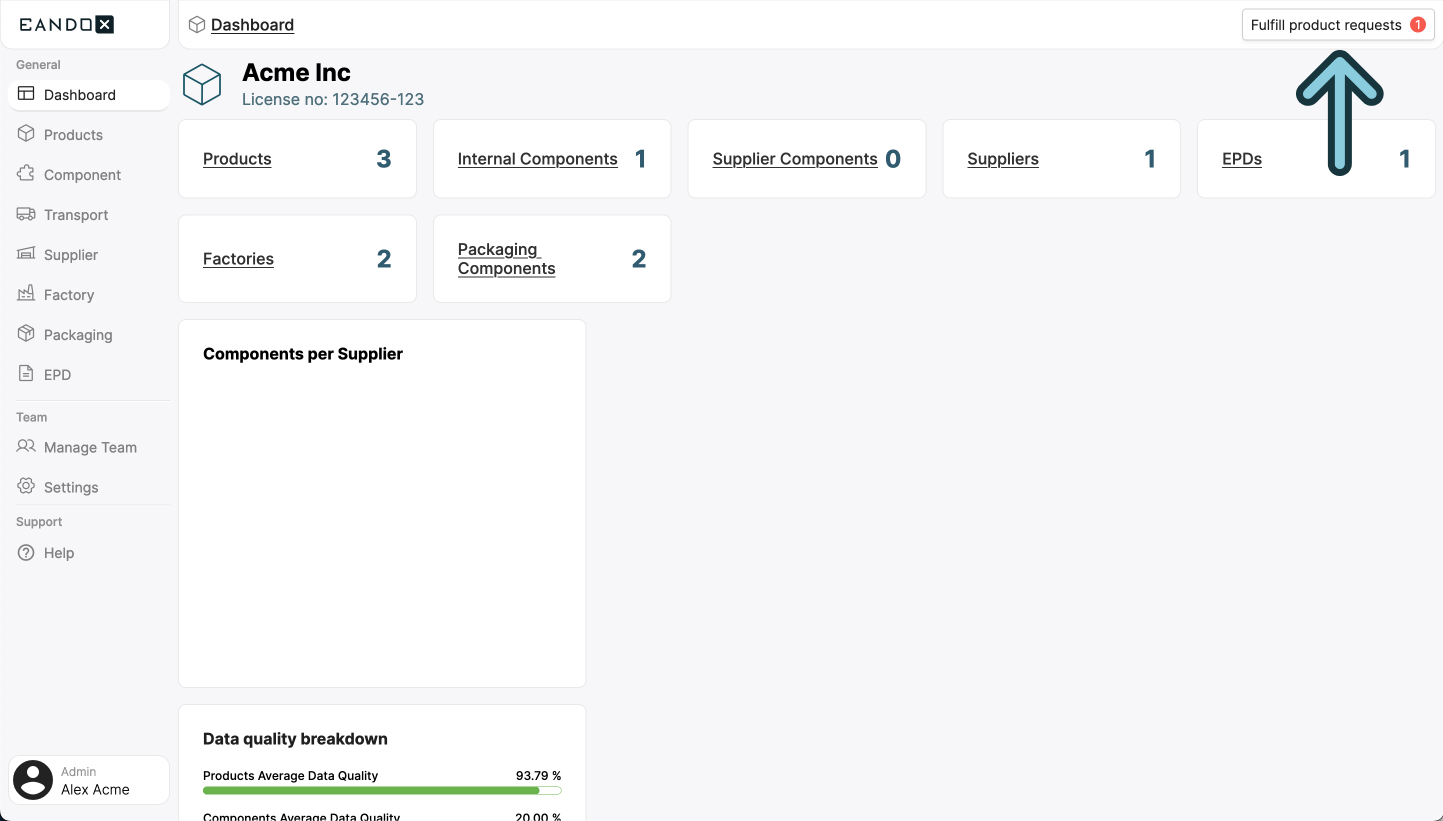
Clicking on this button will open a sidepanel with a table of all the requests you have received.
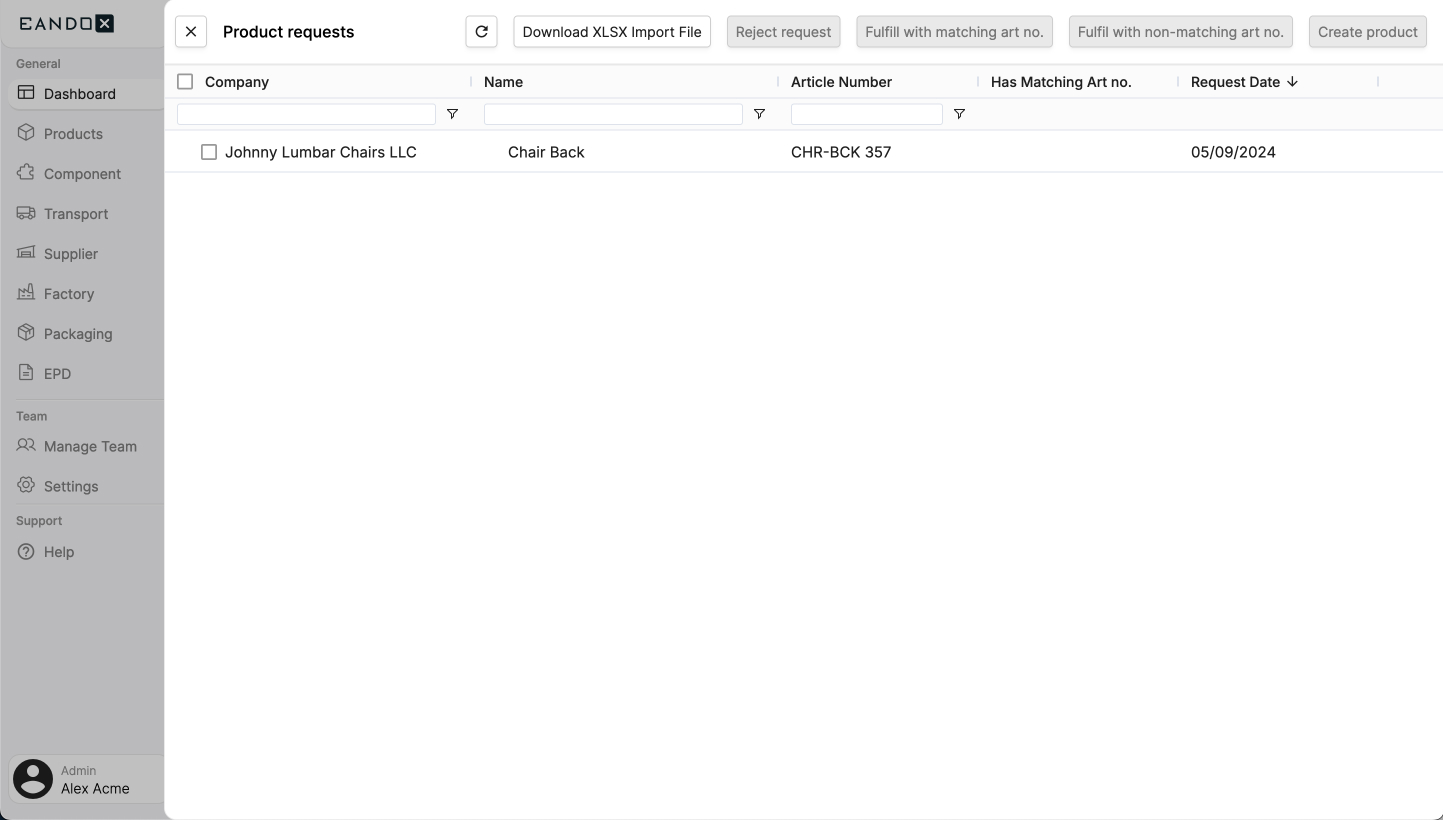
The table has the following columns:
| Column name | Column description |
|---|---|
| Company | The name of the customer that sent the request. |
| Name | The name of the product associated with the request, provided by the customer. It may not match your product name. |
| Article Number | The article number for the product, provided by the customer who sent the request. It may not match your product number. |
| Has Matching Art no. | Indicates whether the article number supplied by the customer matches an existing article number in your EandoX catalog. |
| Request Date | The date the customer requested the product. |
Responding to a request
Clicking an item in the list will select it, and you can select multiple items.
Selecting items will activate one or more of the following buttons:
| Button label | Action description |
|---|---|
| Download XLSX Import File | Creates and downloads an XLSX file containing all data provided by your customers. This allows you to fill in any missing information in a spreadsheet and then import it using the product importer. |
| Reject request | Dismisses and removes the request from the list. The user will be notified that the request has been rejected. |
| Fulfill with matching art no. | If the requested product already exists in your catalog and the customer has provided an article number that is correct, the request will be fulfilled using the existing product. |
| Fulfill with non-matching art no. | If the requested product exists in your catalog but the customer has provided an incorrect article number , this will open a sidepanel allowing you to search for the correct product. |
| Create product | If the product requested by the customer does not exist in your catalog, this will open a sidepanel allowing you to create a new product. |
Creating a product
Choosing the Create product option will take you to the product creation view.
If you are new to EandoX, we recommend that you first start with the Workflow overview to get a better understanding of the product creation process, the different entities, and how they all work together.
If you're feeling adventurous, you can skip right to the Product docs, or the product creation quickstart guide.
Downloading all requests as XLSX
If the in-app fulfillment workflow doesn’t suit your needs, you can download all requests as an XLSX file.
Click the Fulfill product requests button in the top right corner of the dashboard.
This will open a sidepanel displaying a table of all the requests you've received. Click the Download XLSX Import File button to download the file.
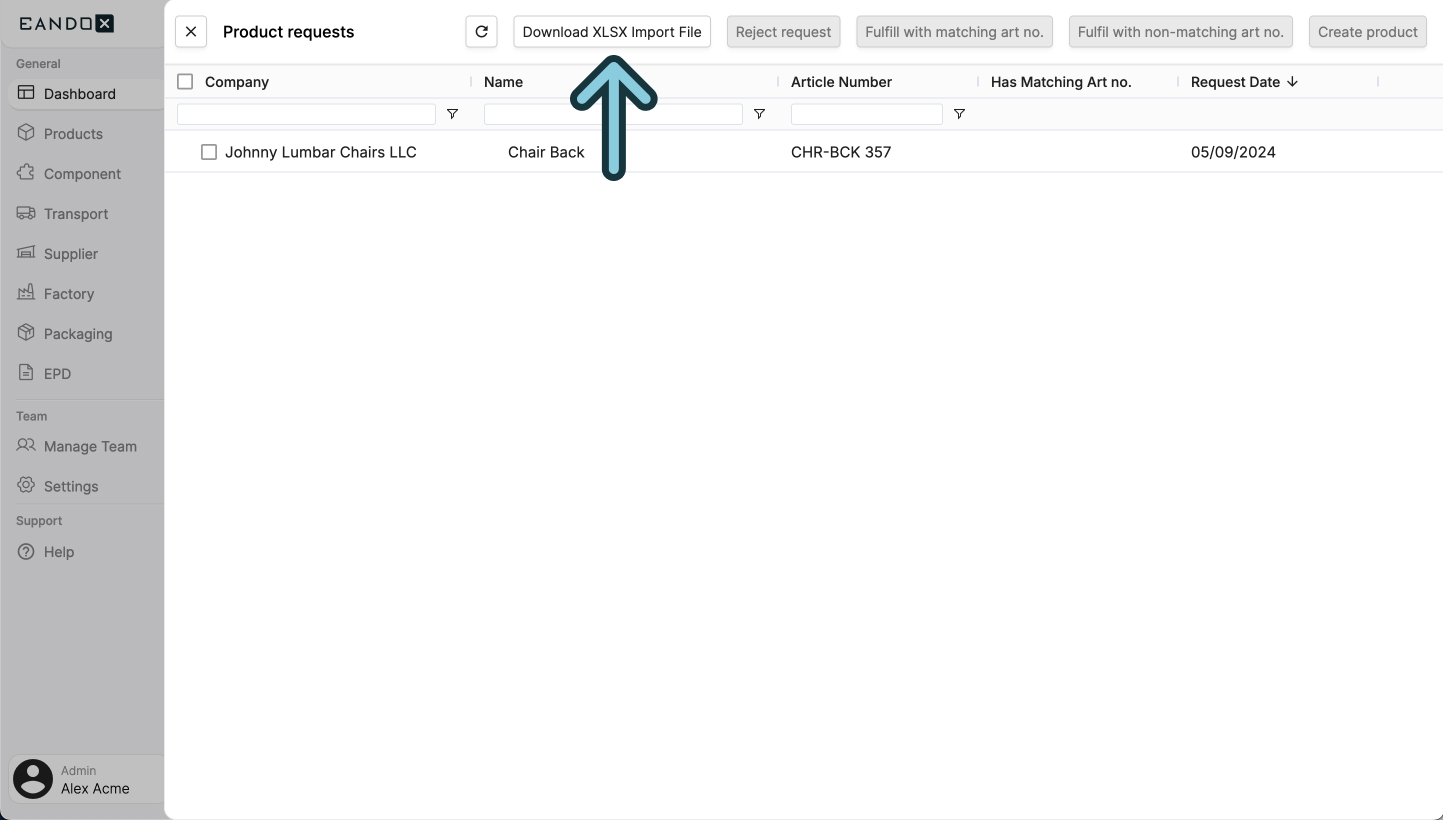
This file can be filled out in Excel and then imported into EandoX, using the product importer.
Learn more
Read more about importing products and components from Excel here.