
Sharing a product
The products you create in EandoX are private by default, visible only to team members within your company.
If you want other EandoX companies to be able to find your products in the Global Library, and use them in their LCAs, you can choose to share them.
When should I share a product?
Sharing is useful if you supply products for another company's manufacturing. It allows them to access your product's LCA results without accessing any of your internal manufacturing data.
Any updates you make to a shared product will automatically reflect in their LCAs, eliminating the need for frequent manual updates and check-ins.
Types of sharing
There are two types of shared products:
- Limited sharing: These products are only visible to manually specified companies in EandoX.
- Full sharing: These products are visible to all EandoX companies.
Setting the sharing type
Navigate to the Products page in the left navigation menu, and click the product you want to share.
On the product page, click the Edit dropdown in the top right corner, and then click the Share option.
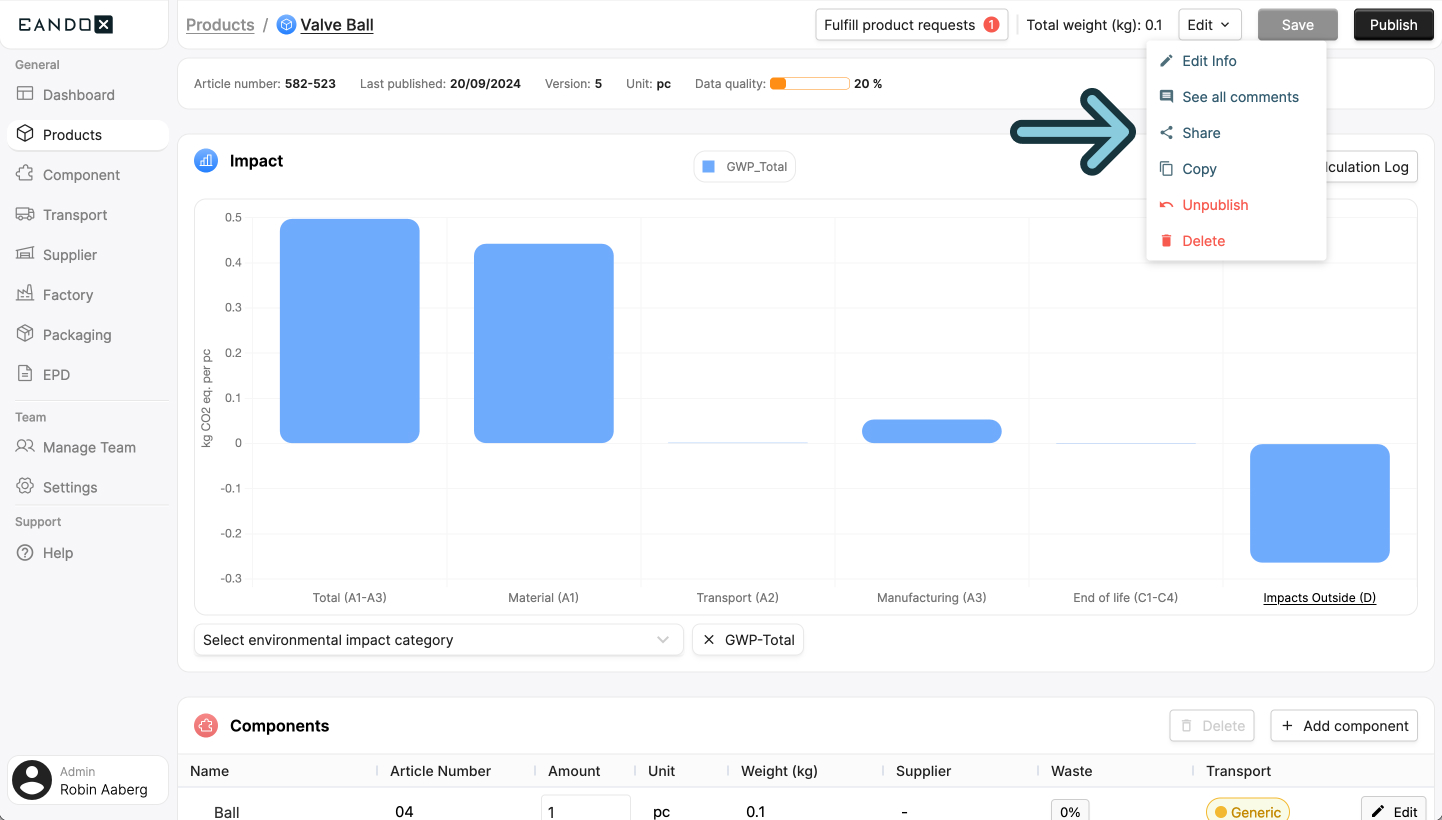
This will open a sidepanel where you can choose the sharing type.
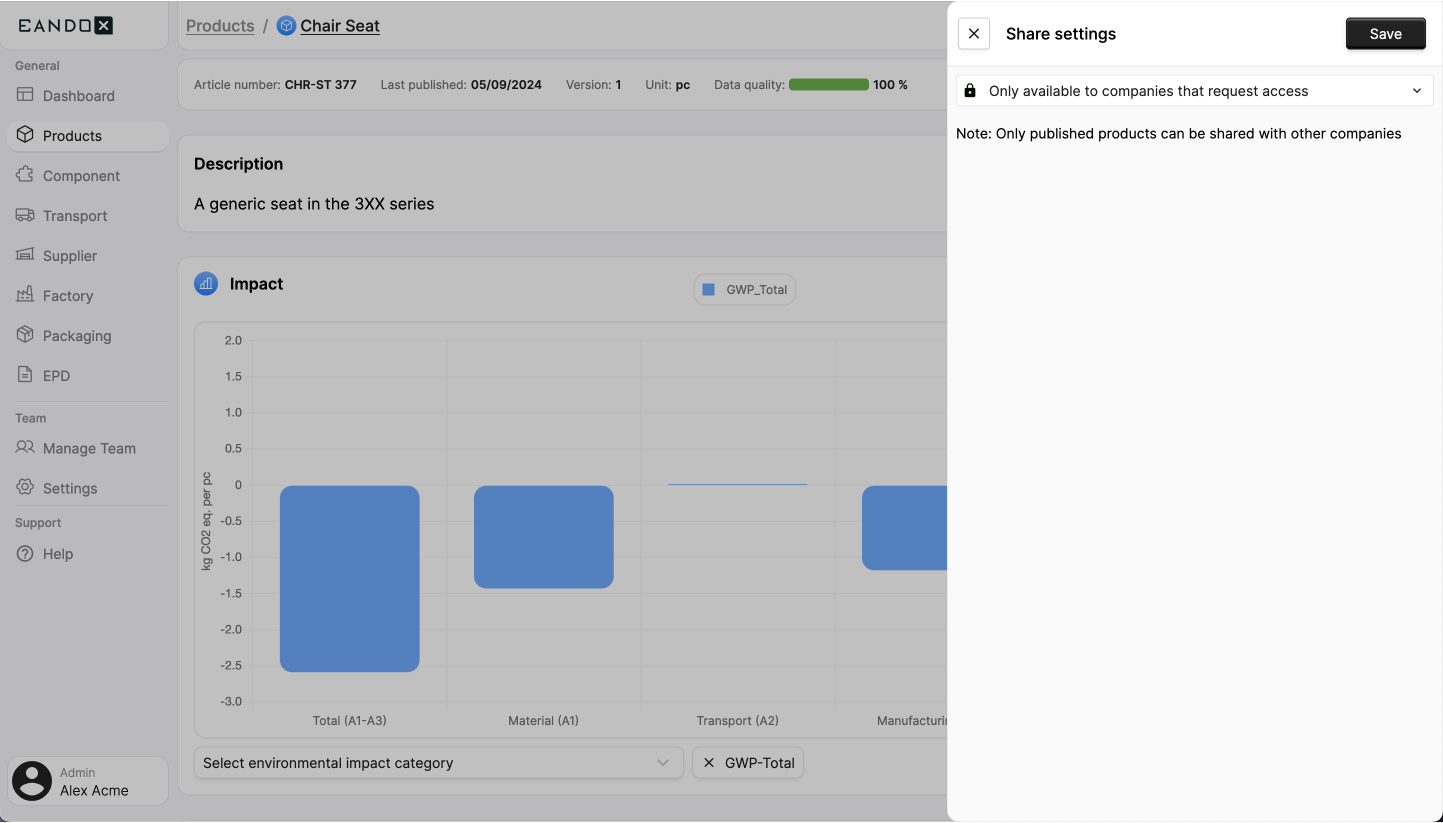
| Label | Description |
|---|---|
| Only available to companies that request access | Sets the product to Limited sharing. The product will only be visible to the EandoX users you manually specify. |
| Available to all companies on EandoX | Sets the product to Full sharing. The product will be added to the Global Library, and visible to all EandoX users. |
Don't forget to publish
To be able to share a product, it first needs to be published.
You can find the Publish button in the top right corner of the product page.
Limited sharing
To share a product with Limited sharing with a company, they must first subscribe to your company, and then send you a product request for the product they want to access.
Details on the process
Read more about how a company can subscribe to you here.
To learn more about how to request a product, read the product request guide.
When a product request has been sent, you will receive an email. You will also see a notification on the top of every page:
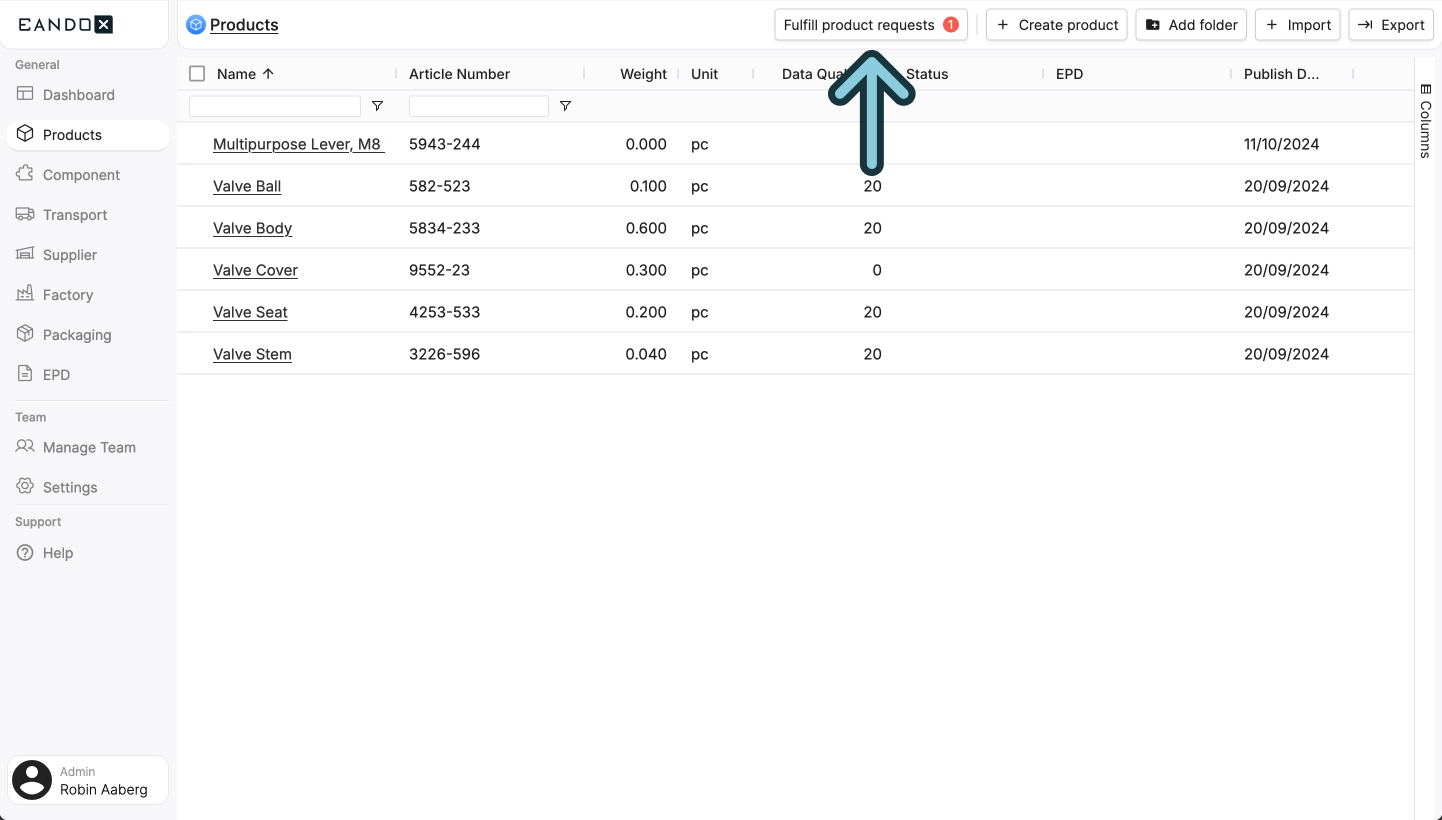
Clicking the notification will open a sidepanel where you can see all the product requests you have received.

This table contains the following columns:
| Column | Description |
|---|---|
| Company | The company that sent the product request. |
| Name | The name of the requested product. |
| Article Number | The article number of the requested product. |
| Has Matching Art no. | Whether the user provided an article number that matches one of your products in EandoX. |
| Request Date | The date the product request was sent. |
Check the article number
The article number provided by the requesting company might not always match the one in your product catalog. Some reason for this include typing errors, miscommunication or missing information.
Be sure to verify the article number for any potential mistakes.
From here, there are three ways to handle the requests:
Accept, with a matching article number
Check the Has Matching Art no. column to see if the article number provided by the requesting company matches one of your products. If it does, you can select the request (by ticking the checkbox next to the name), and click the Fulfill with matching art no. button in the top right corner.
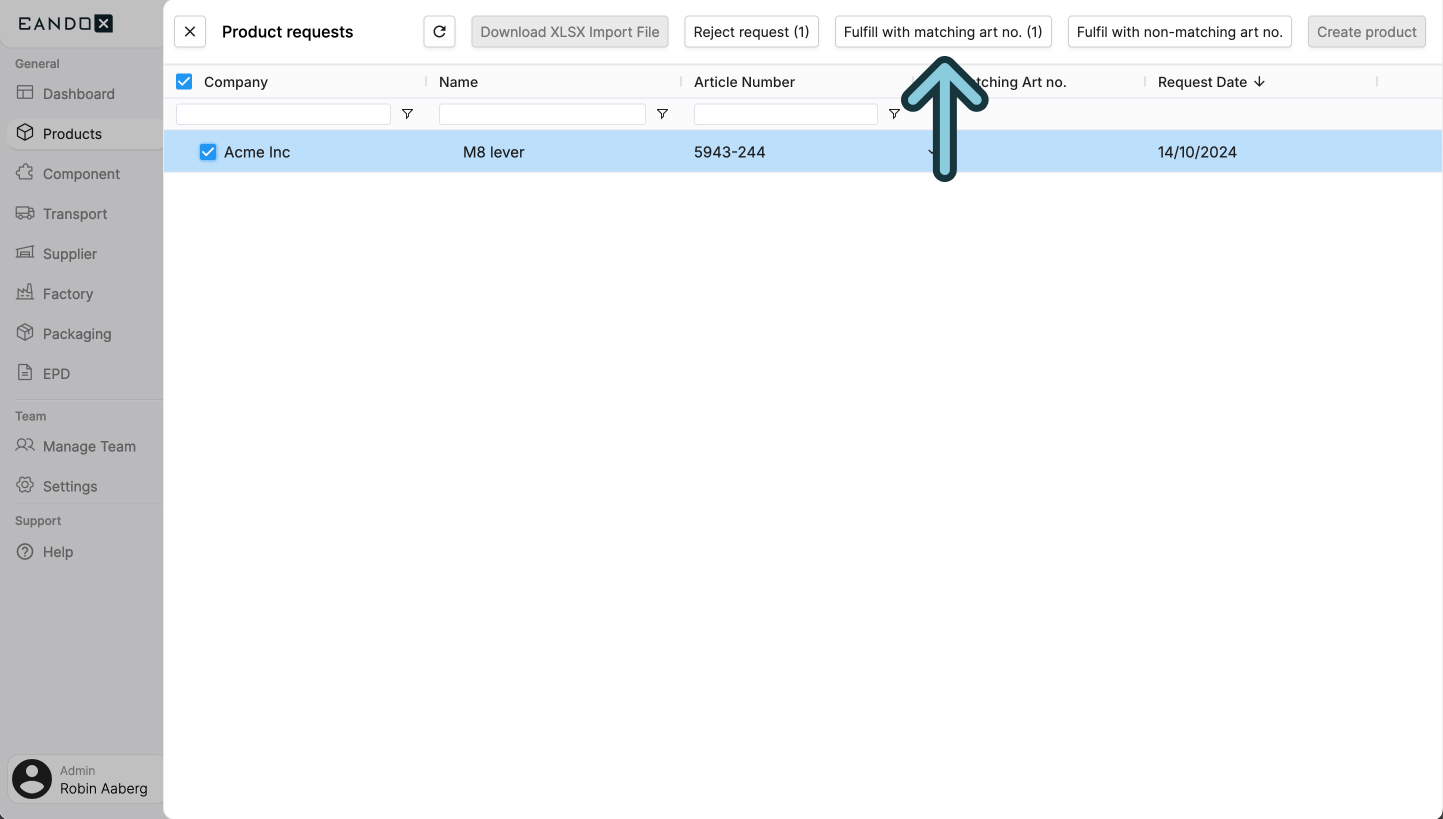
This will share the product with the company, and close the sidepanel.
More than one request?
If you have multiple product requests with matching article numbers, you can tick multiple checkboxes at once.
Accept, without a matching article number
If the article number provided by the requesting company does not match the product they requested, you can select the request (by ticking the checkbox next to the name), and click the Fulfill with non-matching art no. button in the top right corner.
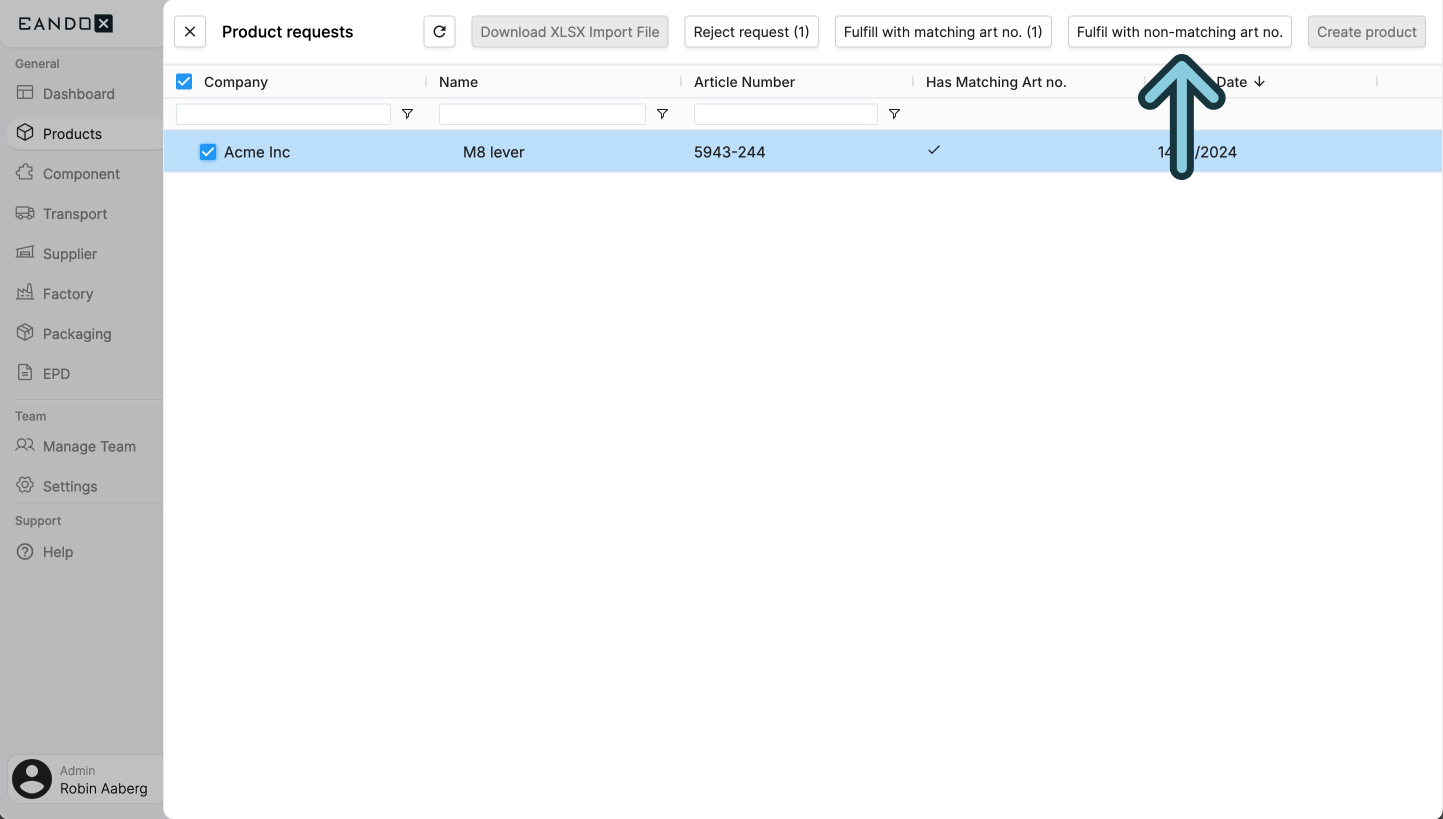
This will open a sidepanel where you can search for the article number that matches the requested product.
Select the product you want to share, and click the Fulfill button in the top right corner.

This will share the product with the company, and close the sidepanel.
Reject request
If you don't want to share the product with the company, select the request (by ticking the checkbox next to the name), and click the Reject button in the top right corner.
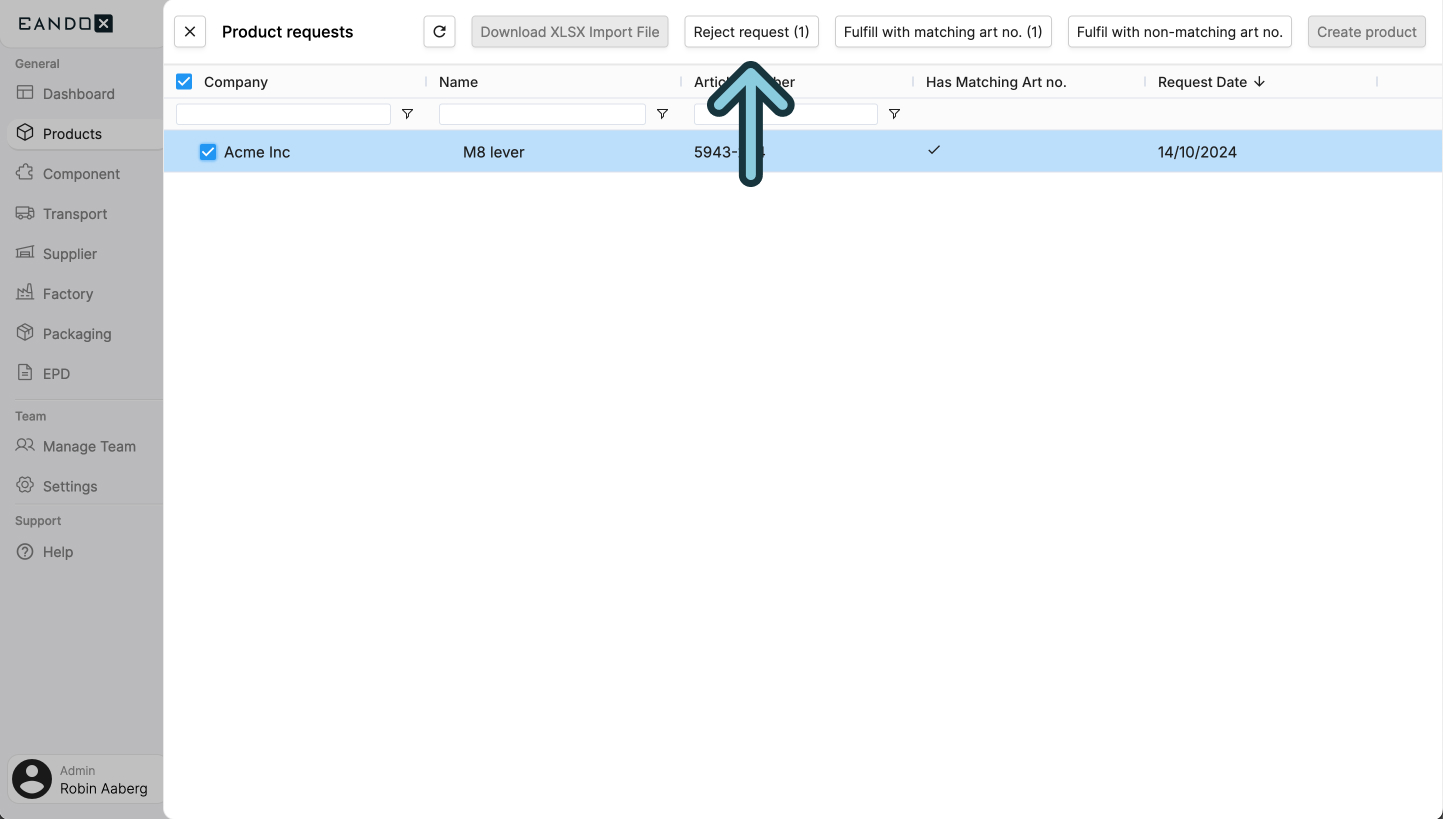
This will notify the requesting company that their request was rejected.
Downloading all requests as XLSX
If the in-app fulfillment workflow doesn’t suit your needs, you can download all requests as an XLSX file.
Click the Download XLSX Import File button to download the file.
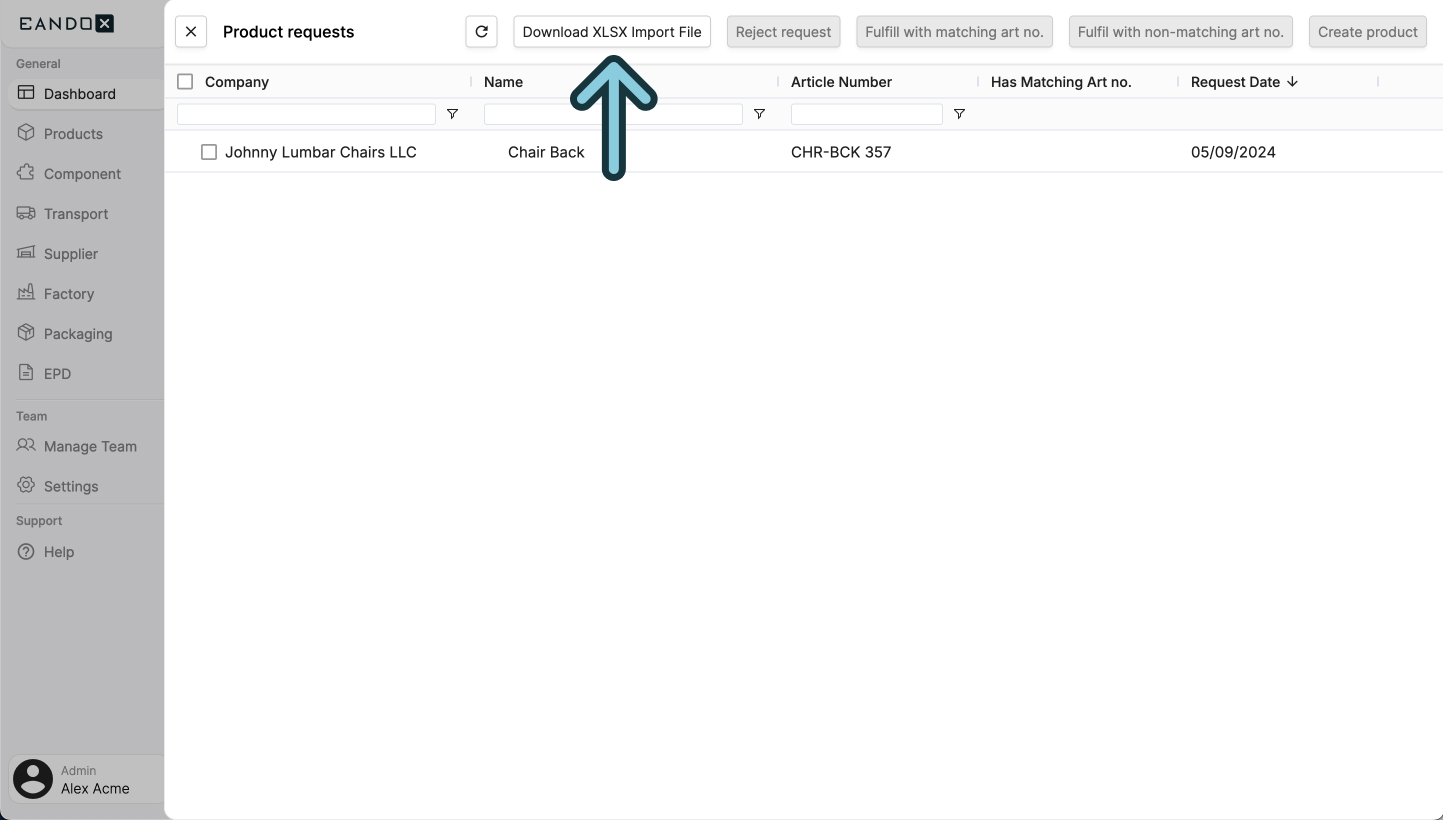
This file can be filled out in Excel and then imported into EandoX, using the product importer.
Learn more
Read more about importing products and components from Excel here.