
Product overview
In EandoX, everything revolves around your products. Every other entity you create will be connected to one or more products at some point. Each product corresponds to a single SKU (Stock Keeping Unit).
TIP
Entities are referring to the different data types that you can create or manage in EandoX. The entities are Product, Component, Material, Packaging, Factory, Transport and Supplier.
To get an overview of all the entities and how they relate to each other, you can read the Workflow overview.
What is a product?
A product is the end result of your manufacturing process. The product entity acts as a container that holds all the supply chain data for one of your products. This data is used by EandoX to generate LCAs, EPDs and other reports.
Products and components
The entities Product and Component are almost identical, and both can be used as parts of other products or components.
The key difference is that a Component is intended for internal use only within your company, meaning it cannot have individual reporting, such as an EPD, on its own.
Do more with what you have
EandoX handles your supply chain data in a unique way, allowing you to reuse it for different purposes. The most common one is to use it for LCAs, but it can also be used with the built-in EPD generator.
Focus on your data, and let EandoX make sure it gets declared in the correct way.
Read more about the EPD generator here.
Product creation quickstart
If you are new to EandoX, and want to get started quickly you can read the product creation quickstart guide. It will give you a good grasp of the overall product creation process, without focusing on the most advanced features.
However, it is recommended to read the full documentation on creating a product, to get the most out of EandoX.
The product overview page
Navigating to the Product page in the left navigation menu will take you to the product overview page.
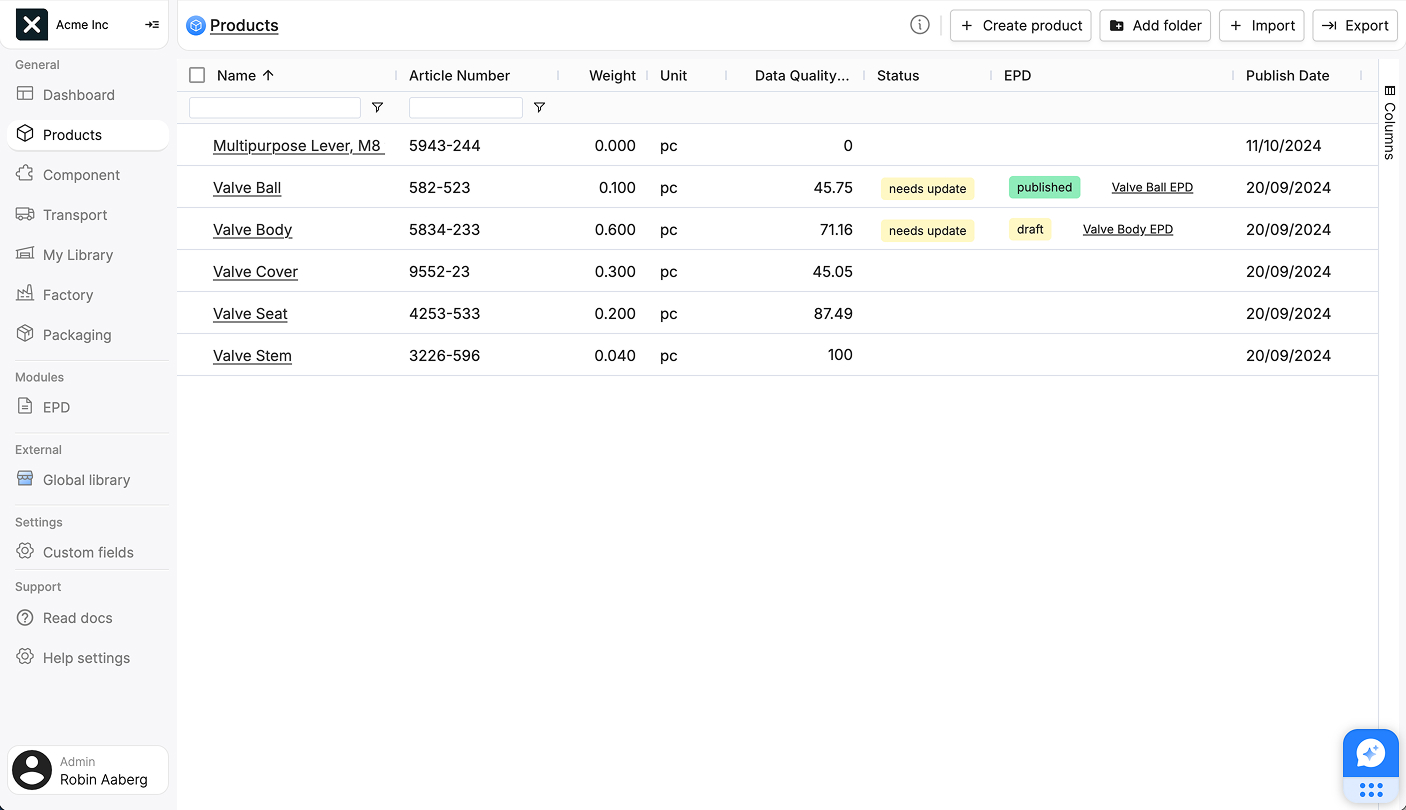
On this page you will find a list of all the products that you have created. The columns in the list are:
| Column name | Column description |
|---|---|
| Name | The name of the product |
| Article number | The article number of the product |
| Weight | The weight of the product |
| Unit | The unit the product is measured in |
| Status | Shows if the product needs updating. The status will display needs update when a supplier component has been modified since your last product save. |
| EPD | If you have created an EPD for your product using the EPD generator, this field displays its status and provides a direct link to access it. |
| Publish date | The date the product was published. This field will be empty if the product hasn't been published yet. |
Organizing the list
The items in the list can be organized in folders.
To create a new folder, click the Add folder button in the header bar.
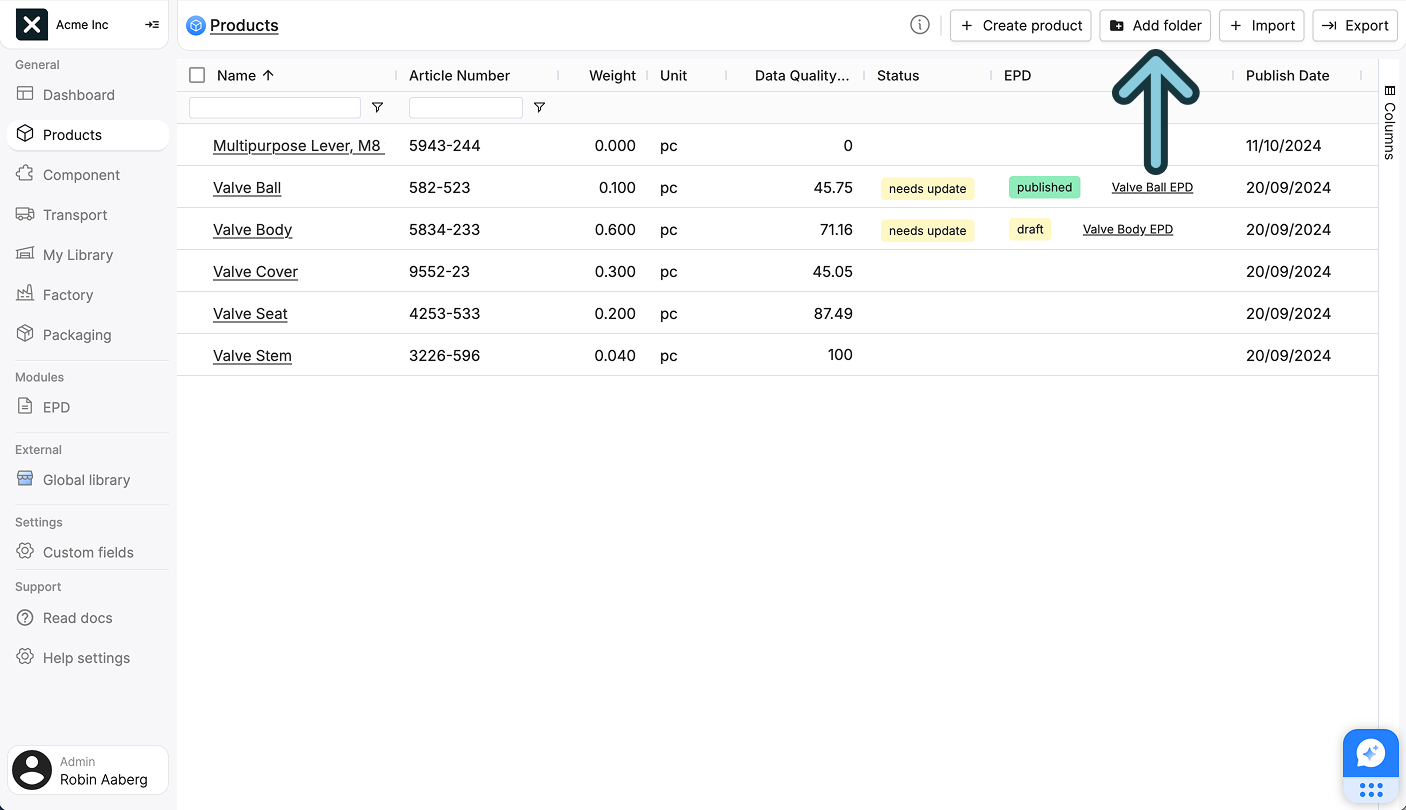
This will open a sidepanel that will allow you to name the folder. Click Create folder in the top right corner to create the folder.
To move items into a folder, hover over an item and check its checkbox. When items are selected, a header bar appears with available actions.

Click Move to folder and choose your destination folder in the sidepanel. Click Move to complete the transfer.
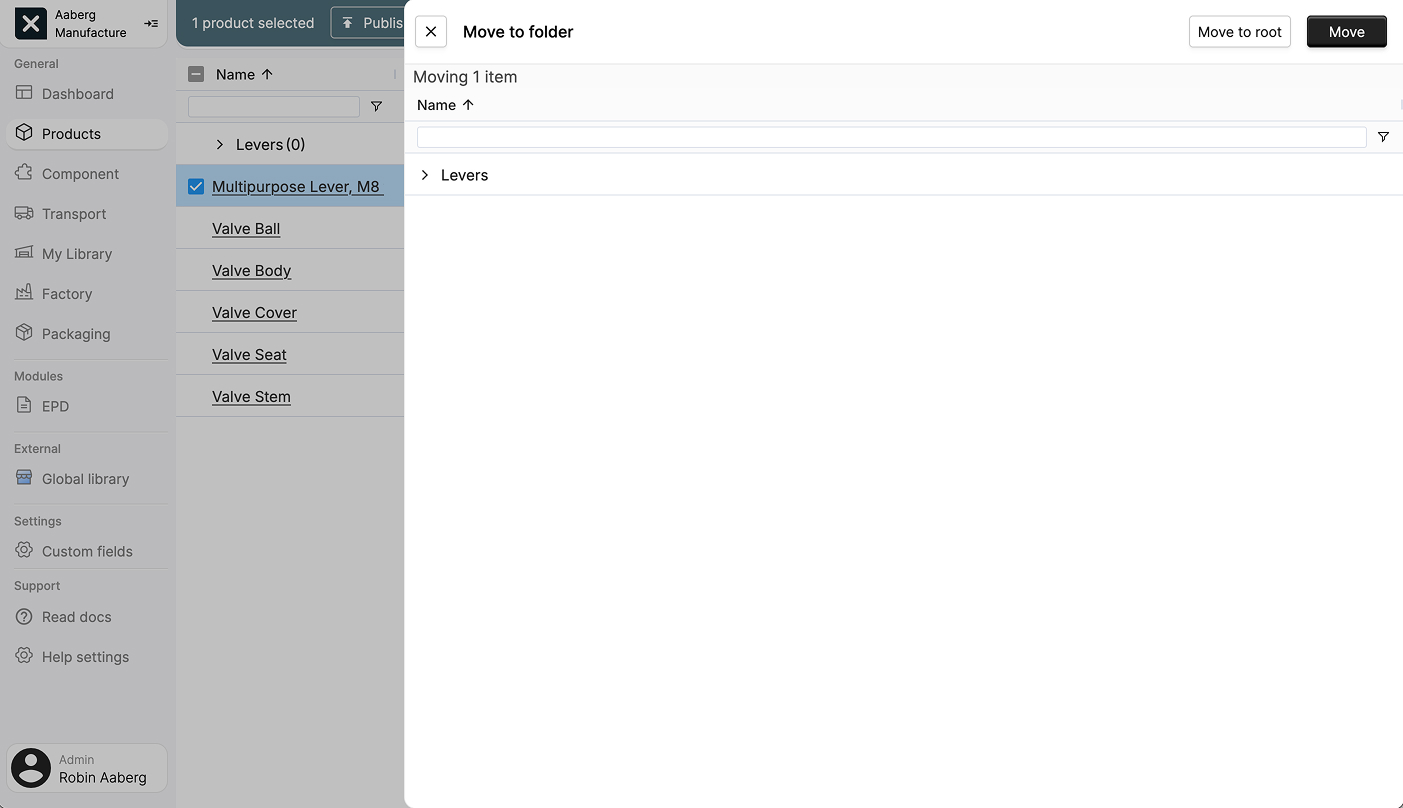
To remove an item from a folder, select it and click Move to folder. Choose Move to root from the options to return the item to the main level.
Nesting folders
The list only supports one level of nesting. You can not place folders inside other folders.
Requesting a product
If your manufacturing process involves ordering components from a supplier connected to EandoX, you can import their supplier product data to your library.
This has multiple benefits:
- You will get accurate LCA's without needing to request sensitive data from suppliers about their manufacturing processes.
- The manufacturing data for your supplier products will always be accurate and up to date.
- Whenever your suppliers change their manufacturing process, the data will be automatically reflected in your products. This eliminates the need for manual updates or frequent follow-ups.
If a supplier is not connected to EandoX, you can invite them and request the supplier products you need.
Further reading
Read more about how to subscribe to an EandoX supplier and their products here.
Read more about how to invite suppliers to EandoX here.
Read more about how to request a supplier product here.
Read more about how to add a supplier product to your library here.
Product versioning
Product entities in EandoX are versioned to allow for changes in your manufacturing process or supply chain.
A product can have two states: Draft and Published.
Saving a product only saves it as a draft. Publishing a product creates a new version of it, and saves the current data as a "snapshot".
Changing the data and only saving it (without a publish) will only affect the draft version of the product. The published version will be unchanged.