
Creating a packaging
This article will go through all the steps of creating a packaging entity in EandoX.
Please note
This is a hands-on guide for creating packaging entities in EandoX. For understanding packaging data and its impact on LCA calculations, see the Packaging data article.
Creating a new packaging
Navigate to the Packaging page in the left navigation menu, and click the Create packaging button in the top right corner.
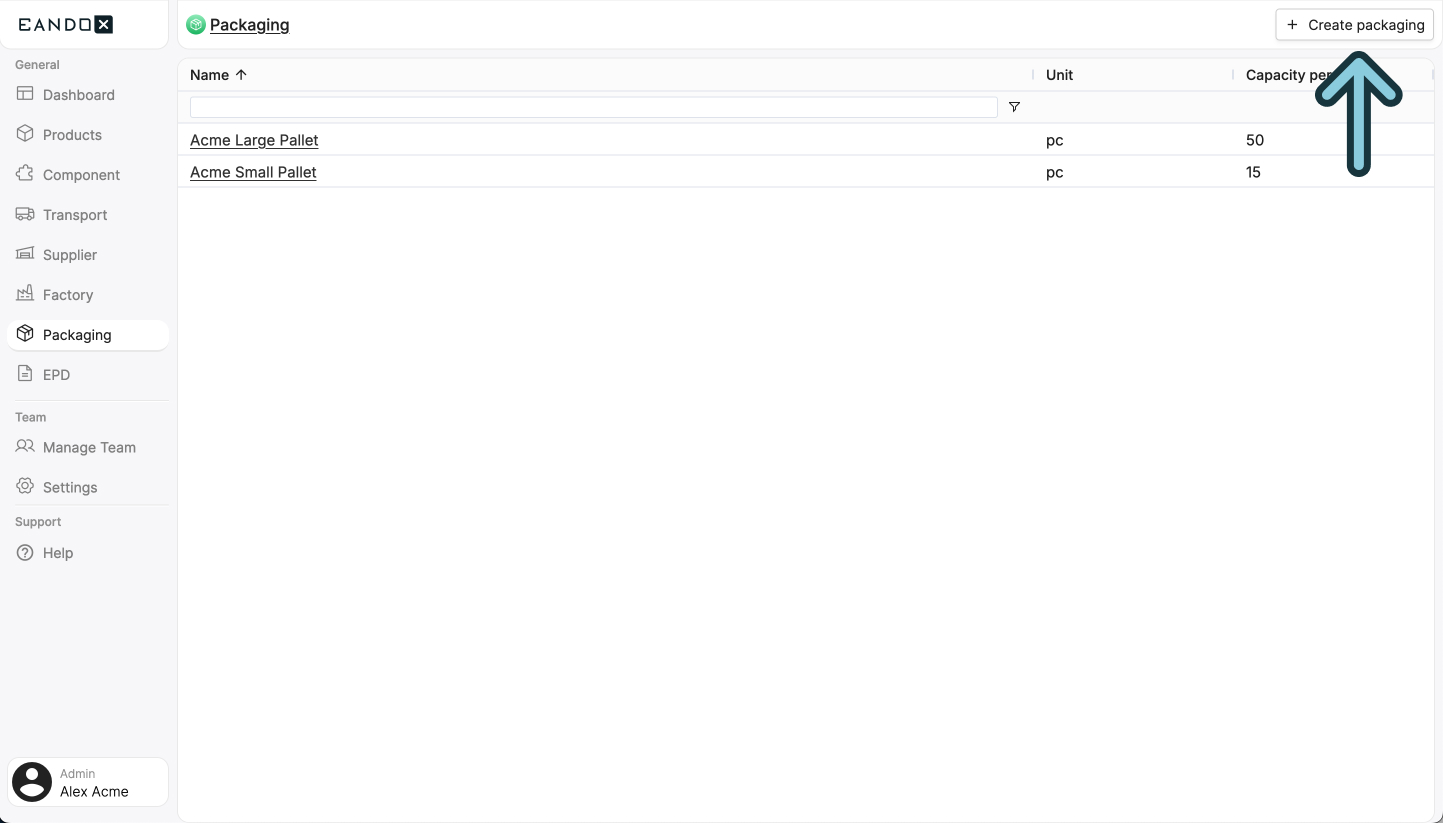
This will open a sidepanel where you can fill out the necessary information about your packaging. This information can be changed later on, but it is recommended to fill it out correctly the first time.
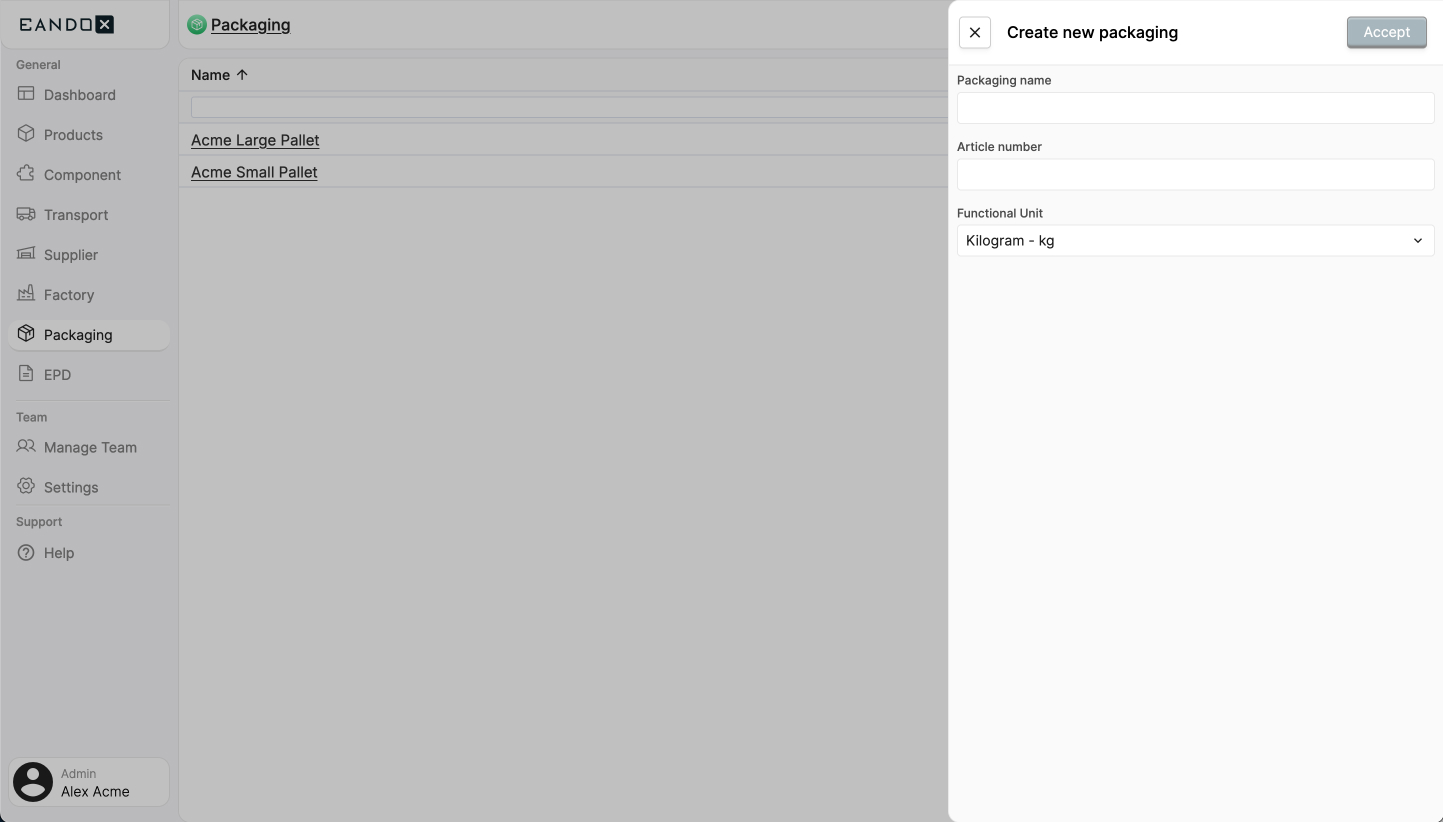
The fields in the sidepanel are as follows:
| Field name | Field description |
|---|---|
| Packaging name | The name of the packaging. |
| Article number | This is used to identify the packaging, so it should be unique. |
| Functional unit | The unit in which the packaging is used. |
Click Confirm to create the packaging. This will take you to the packaging page where you can view and edit the the details of your packaging, and start attaching other entities to it.
Next steps
From here you follow the same steps as with products. Read more about it here.