
Requesting a product from a supplier
One of the most powerful features of EandoX is the ability to use supplier products directly in your own products. This ensures that you always have accurate, up-to-date LCAs, without having to ask the supplier for any sensitive business data. An added benefit is that your products stay up-to-date automatically when suppliers make changes to their manufacturing process or supply chain.
If a supplier hasn't created a product you order from them yet, you can send them a product request.
Can't find your supplier?
Sending a product request requires that your supplier is part of the EandoX platform. If you cant find your supplier in the list of suppliers, you will have to invite them.
Read more about inviting a supplier here.
Creating a product request
There are two places on the My Library page where you can create product requests: the Supplier Products tab, and the Suppliers tab.
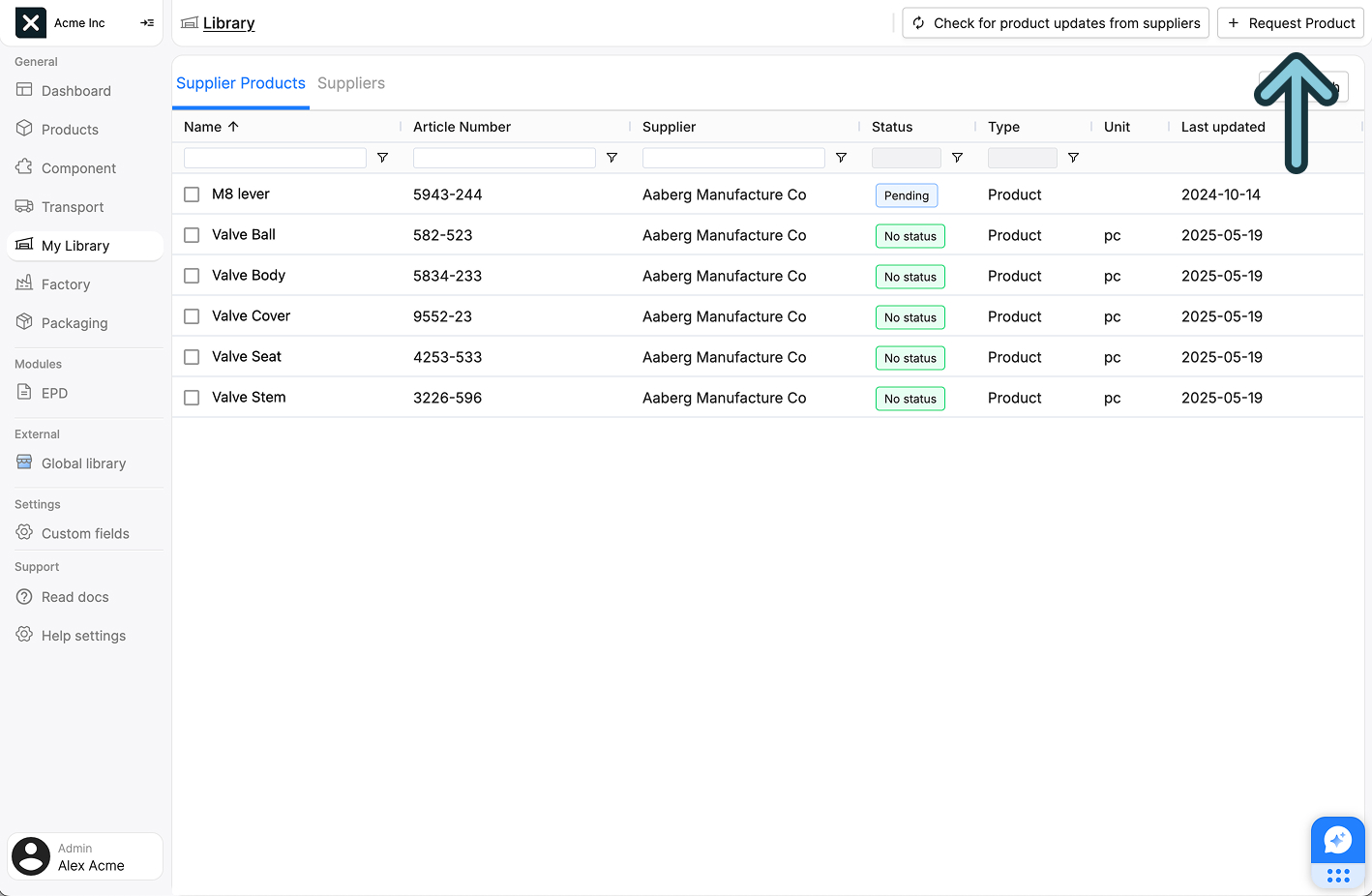
From the Supplier Products tab
Navigate to the My Library page in the left navigation menu. Make sure you are on the Supplier Products tab. Then click the + Request product button in the page header to open the request sidepanel.
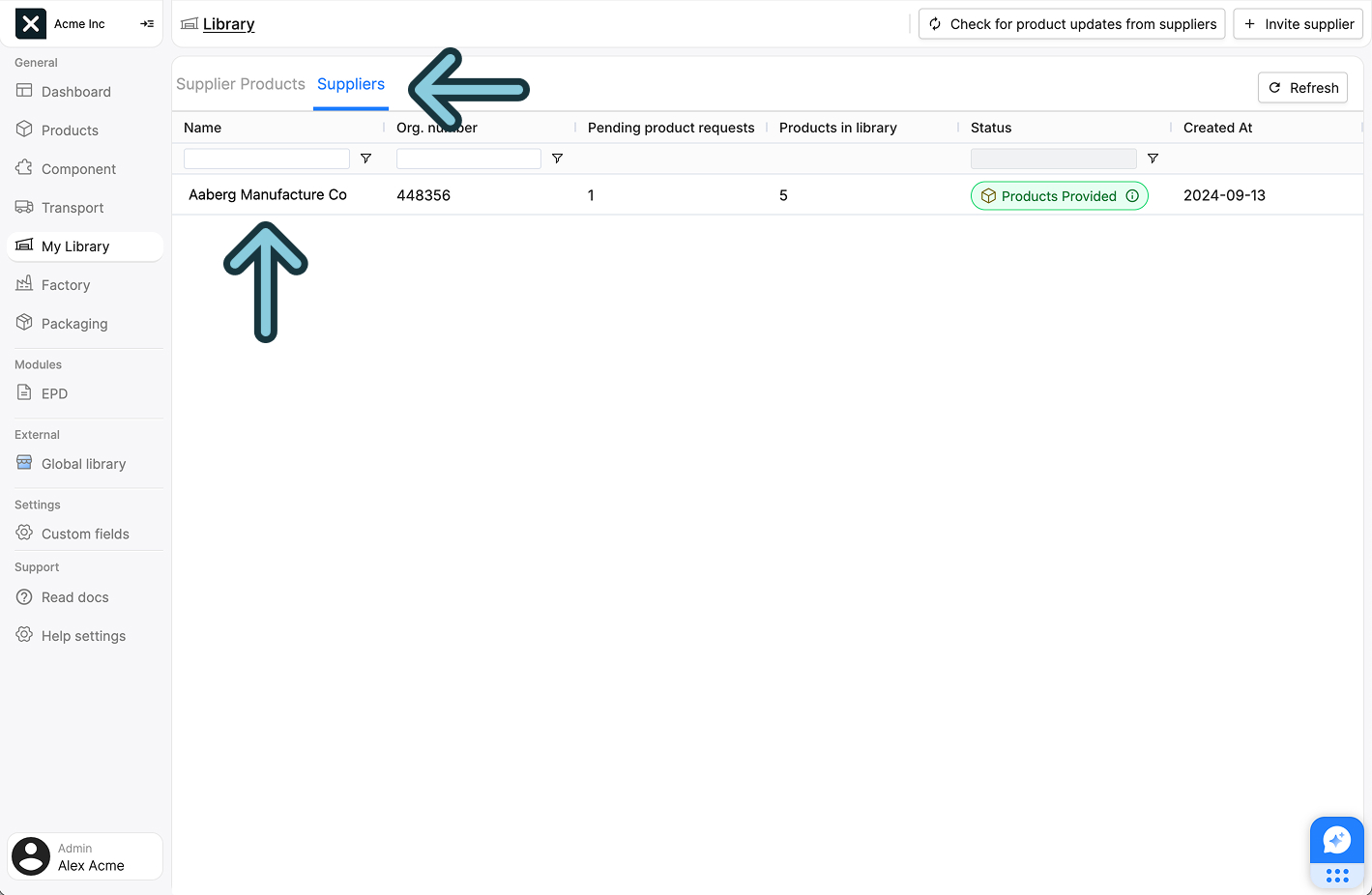
From the Suppliers tab
Navigate to the My Library page in the left navigation menu. Click the Suppliers tab. This will show you a list of all the suppliers you are subscribed to. Click the name of the supplier you want to request a product from.
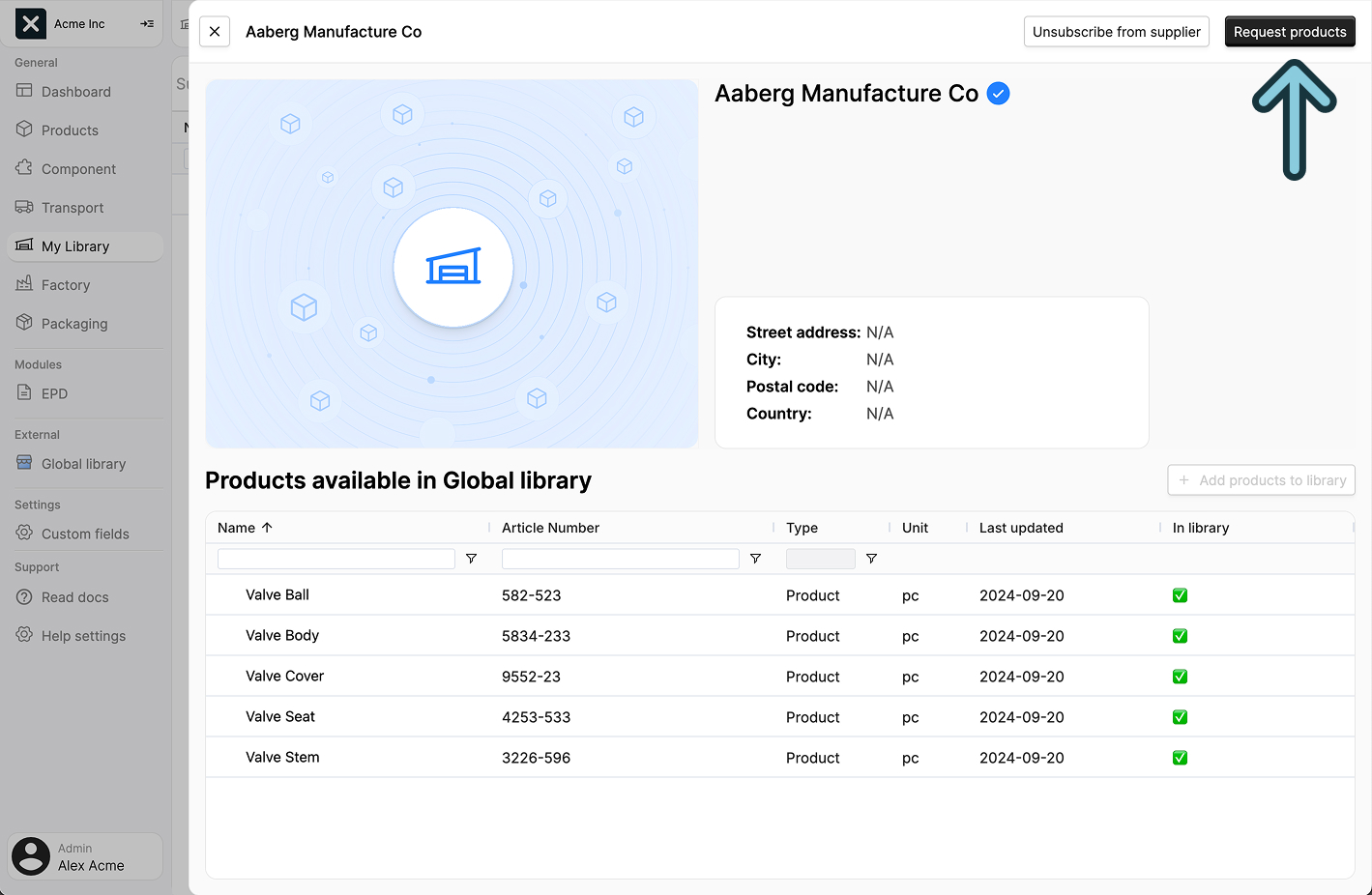
This will open a sidebar with the suppliers details. Click the Request products button in the page header to open the request sidepanel.
The request sidepanel
The sidepanel contains two tabs for different types of requests:
- Single request: For requesting one product at a time
- Multi request (XLSX): For requesting multiple products at once
Before getting into that, let's have a look at selecting a supplier.
Selecting a supplier
Both request types require you to select a supplier to send the request to. If you are creating the request from the Suppliers tab, the supplier will already be selected, and this step can be skipped.
Click the Pick supplier button. This will open a sidepanel that lists all the suppliers you are subscribed to. Clicking a suppliers name will show you more details about them.
Can't find the right supplier?
If your supplier is not in the list, you might need to subscribe to them, or invite them to join EandoX.
Read more about subscribing to suppliers here.
Read more about inviting suppliers here
Select the supplier you want to send the request to by ticking the checkbox next to their name. Then click the Select button in the top right corner of the sidepanel.
Requesting a single product
In the sidepanel, select the Single request tab:
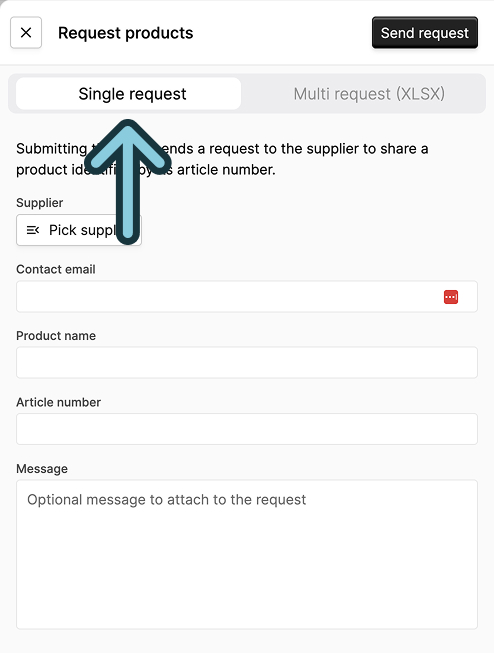
After selecting a supplier, fill out the following information:
| Field name | Field description |
|---|---|
| Contact email | The email address of the person you want to contact with the product request. This is usually prefilled with the email of the suppliers contact person. |
| Product name | The name of the product you want to request. |
| Article number | The article number of the product you want to request. |
| Message | An optional message to send to the supplier along with the request. |
Use the right article number!
The article number field refers to the article number of the suppliers product.
Do not use your own internal article number for this field, as this will make it harder for the supplier fulfill your request.
Click the Send Request button in the top right corner to send the request to the supplier.
Requesting multiple products
In the sidepanel, select the Multi request (XLSX) tab:
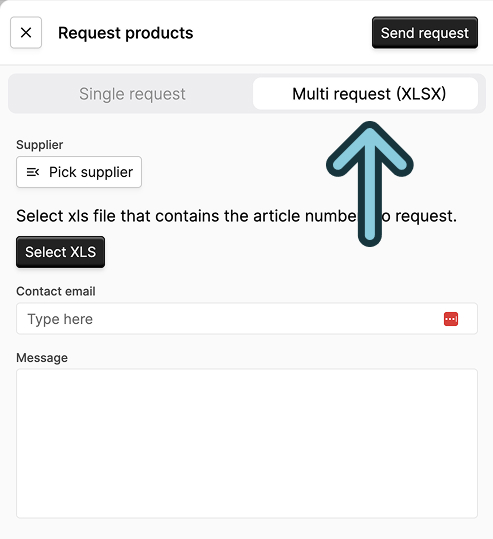
After selecting a supplier, fill out the following information:
| Field name | Field description |
|---|---|
| Select XLS | The XLS file containing the article numbers and product names you want to request. |
| Contact email | The email address of the person you want to contact with the product request. This is usually prefilled with the email of the suppliers contact person. |
| Message | An optional message to send to the supplier along with the request. |
Click Send Request to send the request to the supplier.
Managing product requests
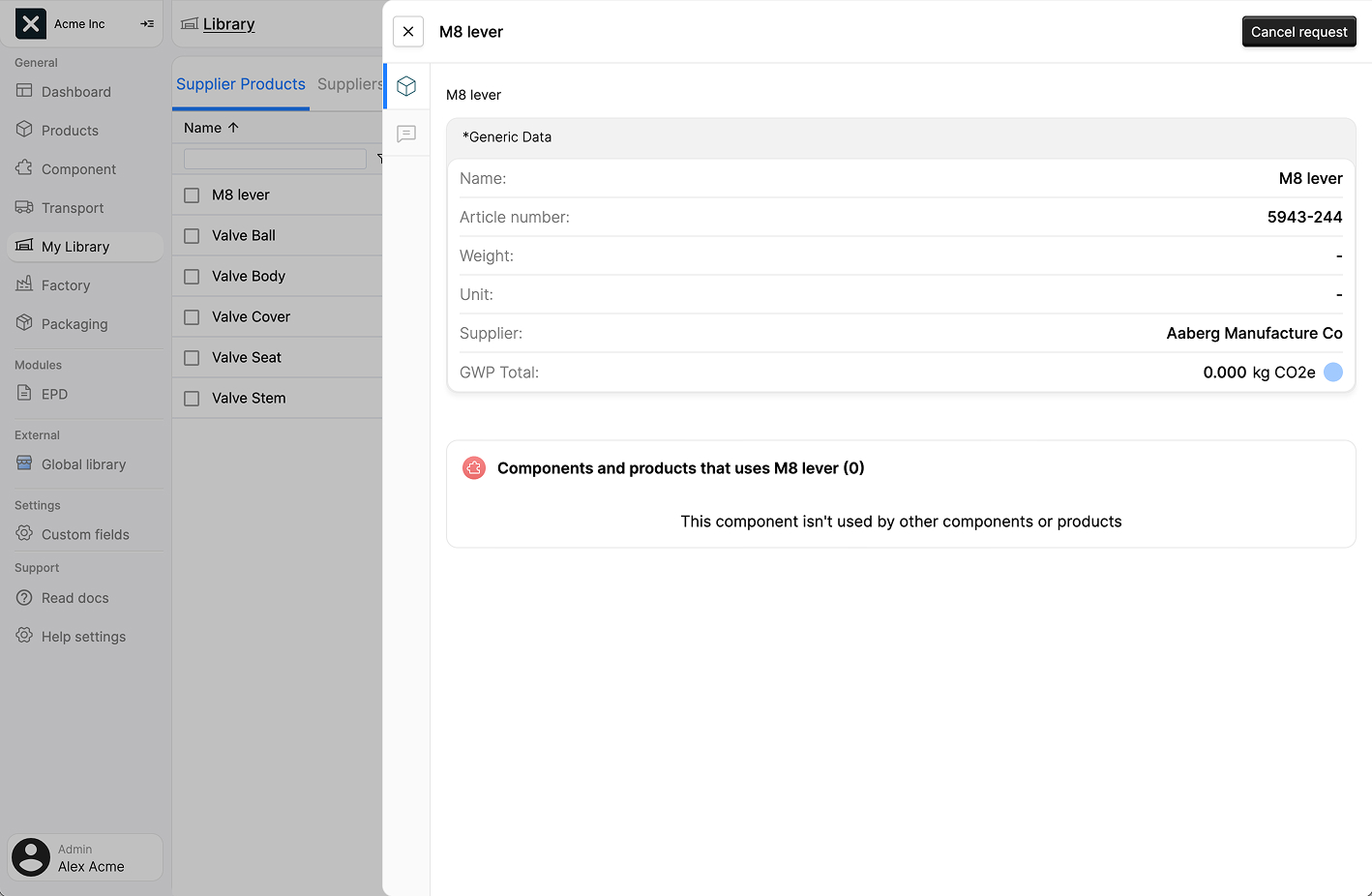
After a request has been created, it will appear in the Supplier Products tab of your library with a status of Pending. You can monitor and manage your requests in a similar way to how you manage the supplier products.
Click on the name of a pending request in the list to open its sidepanel. Here you can view the request details.
Canceling requests
To cancel a request, either:
- Select the request in the list and click the
Deletebutton in the header menu, or - Open the request's sidepanel and click the
Cancel requestbutton in the top right
A confirmation dialog will appear before the request is canceled.