
Export products to Excel
Exporting products to Excel is useful for managing large amounts of data quickly. While spreadsheets lack the advanced relations and data entry features of the EandoX app, they can sometimes be more efficient for basic edits and updates.
Workflow tip
Another common use of the export feature is to generate an empty export spreadsheet template. A template makes it easy to bulk-import data into EandoX from external sources.
To generate an empty template you will be using the Add extra components and Add extra materials fields in the export sidepanel. Read more about these fields in the Exporting data table below.
Read more about importing data here.
Exporting data
Navigate to the Products page in the left navigation menu and click the Export button in the top right corner.
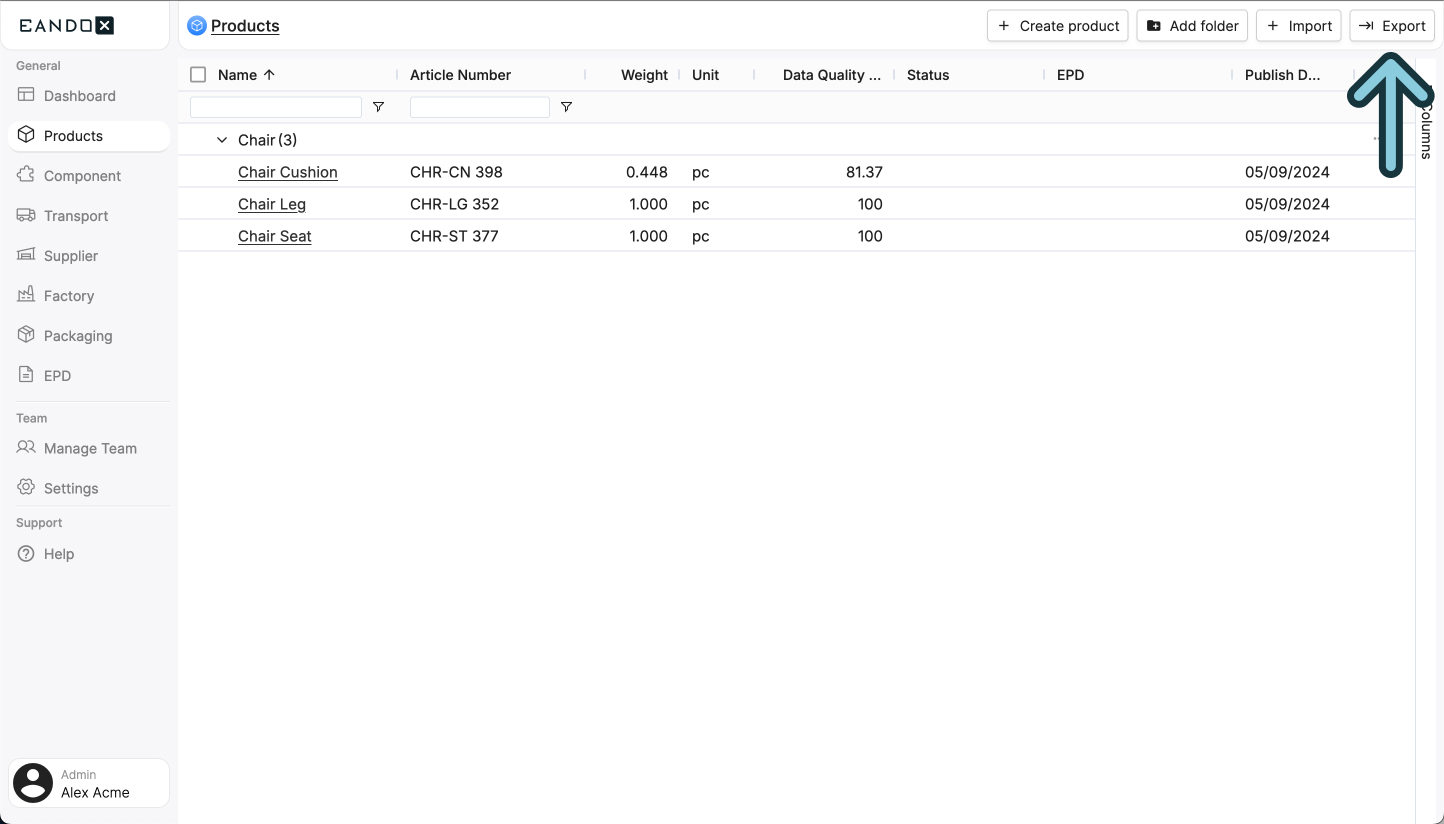
This will open a sidepanel where you can select the entities you want to export.
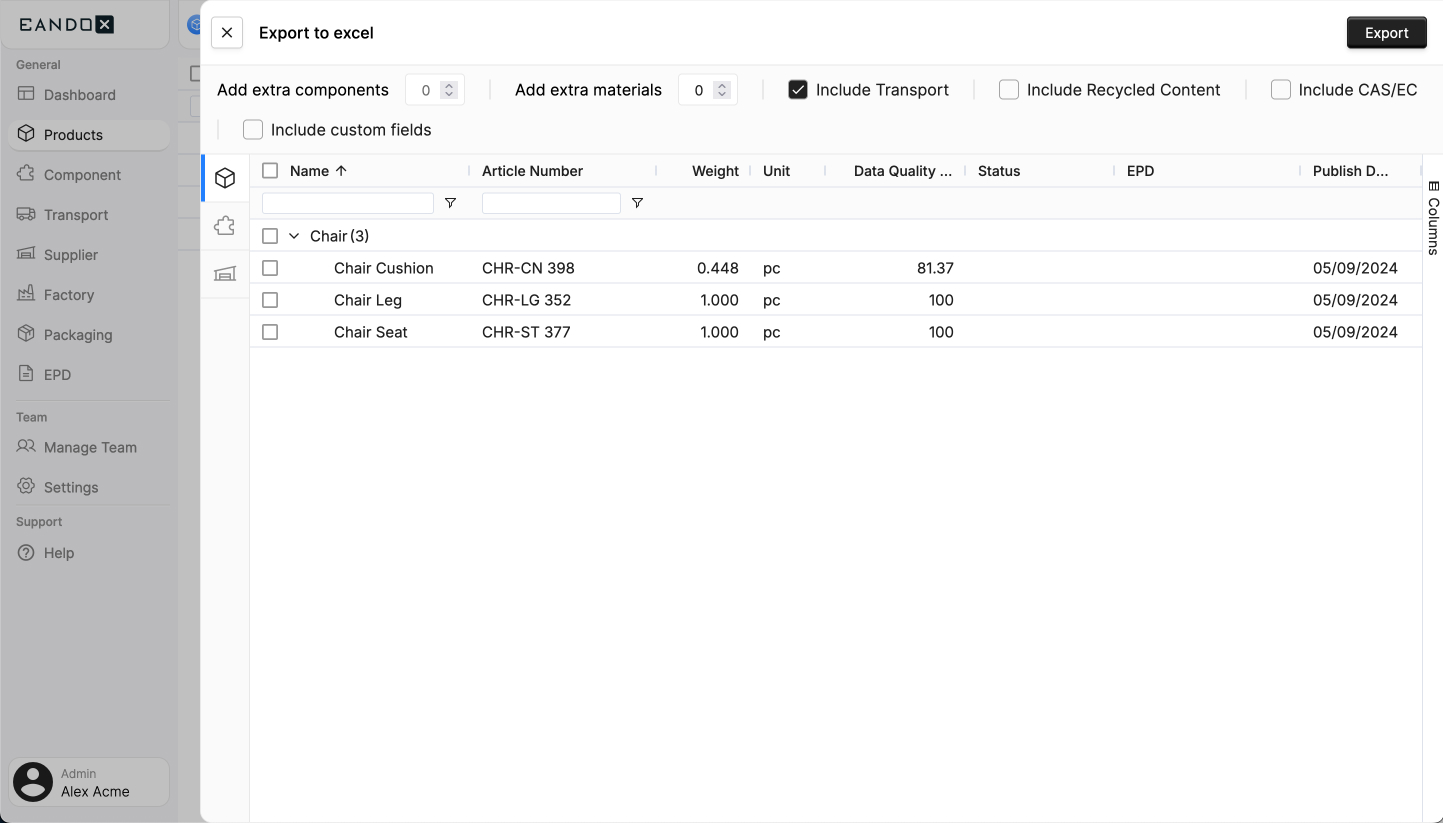
It has the following options:
| Field name | Field description |
|---|---|
| Add extra components | Creates additional empty component fields in the export file, beyond the currently selected entities. |
| Add extra materials | Creates additional empty material fields in the export file, beyond those currently attached to your selected component entities. |
| Include transport | Wether or not to include the transport information in the export. |
| Include recycled content | Wether or not to include the recycled content information in the export. |
| Include CAS/EC | Wether or not to include the CAS/EC information in the export. |
| Include custom fields | Wether or not to include the custom fields in the export. |
Select the entities you want to export and click the Export button. This will start generating an export file.
Dependencies
Selecting an entity that is linked to another entity will automatically include both of the entities in the exported file.
For example, if you select a Pillowcase that has the Cotton material linked to it, the item Cotton will automatically be selected (and cannot be deselected). The export will include data for both the Pillowcase product and the Cotton material.
When you select an entity, all its linked materials and components will be automatically included in the export.
For example, if you select a Pillowcase product that uses Cotton as a material, the item Cotton will automatically be selected. You cannot exclude the cotton data since it's required for the pillowcase. The export will include data for both the Pillowcase product and the Cotton material.
When the file is ready, the Export buttons label will change to Download xlsx. Click it to download the file.
After the file has been downloaded, you can open it in a spreadsheet editor and start modifying the data.
Spreadsheet structure
macOS Numbers app
Due to limitations in the macOS Numbers app, it is recommended to edit the file with either Excel or Google Sheets.
The exported Excel file will contain three sheets:
- Instructions
- Products
- Components
Products/components sheet
The Products and Components sheets include the same columns and data. The only difference is their entity type.
They have the following columns:
| Column name | Column description |
|---|---|
| Id | An internal id used by EandoX. This should never be modified. |
| Name | The name of the product. |
| Art nr | Your internal article number for the product. |
| Unit | The unit the product is measured in. Includes all units that are supported by EandoX. |
| Folder | The folder that the product is organized in in EandoX. |
| Factory [A-Z] | The factory that the product is made in. Populated by the factories that you have added to EandoX. |
| Share | How many percent of the product is manufactured in the factory [A-Z]. |
| Pack Comp [A-Z] | The packaging used for component [A-Z]. |
| Amount | How many units of the packaging [A-Z] are used for the product. |
| Component [A-Z] | The component that is used in the product. |
| Amount | How many units of the component [A-Z] are used in the product. |
| Transport | The transport that is used for the component [A-Z]. The transport is defined as a comma separated string of three numbers, representing truck, boat and train in kilometers. The value 100,200,300 means that the transport has been defined as 100km truck, 200km boat and 300km train. |
| Material [A-Z] | The material that is used in the product. Populated with all materials that are available in EandoX |
| Weight | The weight of the material [A-Z] in KG. |
| Transport | The transport that is used for the material [A-Z]. The transport is defined as a comma separated string of three numbers, representing truck, boat and train in kilometers. The value 100,200,300 means that the transport has been defined as 100km truck, 200km boat and 300km train. |