Import products from Excel
EandoX allows you to import product data from spreadsheets, using the XLSX importer. It can also be used to update large amounts of product data quickly, by first exporting your EandoX data, editing it in a spreadsheet editor, and then importing it back into EandoX.
Workflow tip
The simplest way to import data is by using a template sheet.
To create one, export an empty spreadsheet from EandoX. You can then edit it in any spreadsheet editor and import it back into EandoX when you're done.
Read more about exporting data here.
Importing products
Navigate to the Products page in the left navigation menu and click the Import button in the top right corner.
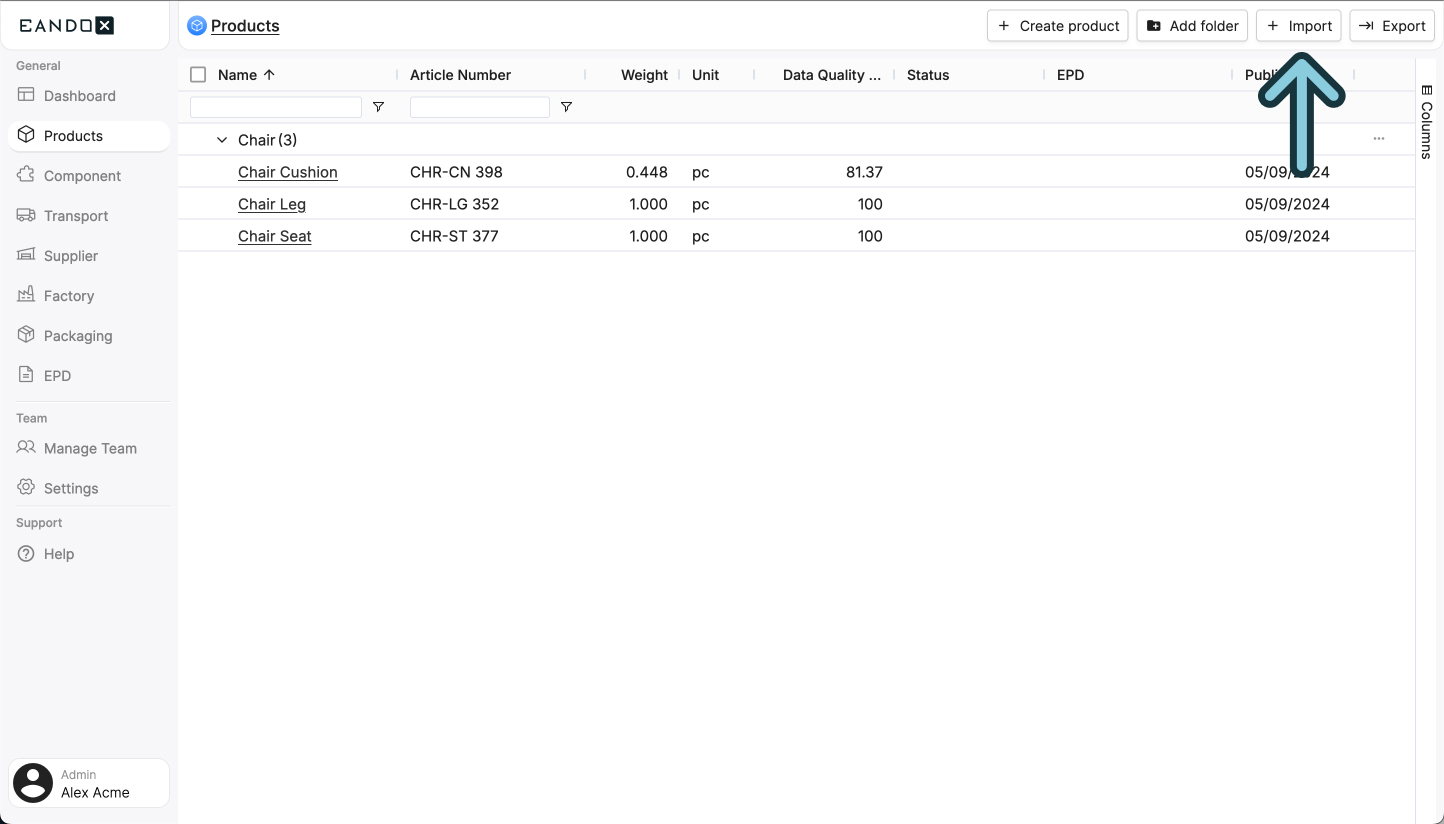
This will open a sidepanel where you can select the Excel file you want to import.

It has the following options:
| Field name | Field description |
|---|---|
| Force autoshare setting | Check this if you want the imported products to automatically be shared with other companies in EandoX through the Global Library. |
| Auto publish updates after import | Check this if you want the imported products to automatically be published after import. |
| Pick file | Selects the Excel file you want to import. |
Autoshare vs Publish
Published products will not be visible in the Global Library, but can be shared with your subscribing companies if they send you a request.
Products that have the autoshare setting enabled will be visible to all companies in EandoX when they search for products in the Global Library.
Further reading
Read more about how subscribers can request products here.
When the file is uploaded, click the Validate button in the top right corner of the sidepanel to check if the data is valid. This will bring up the validation view.
The first thing you will see is the Rows to import tab. It will show you the data that will be imported.
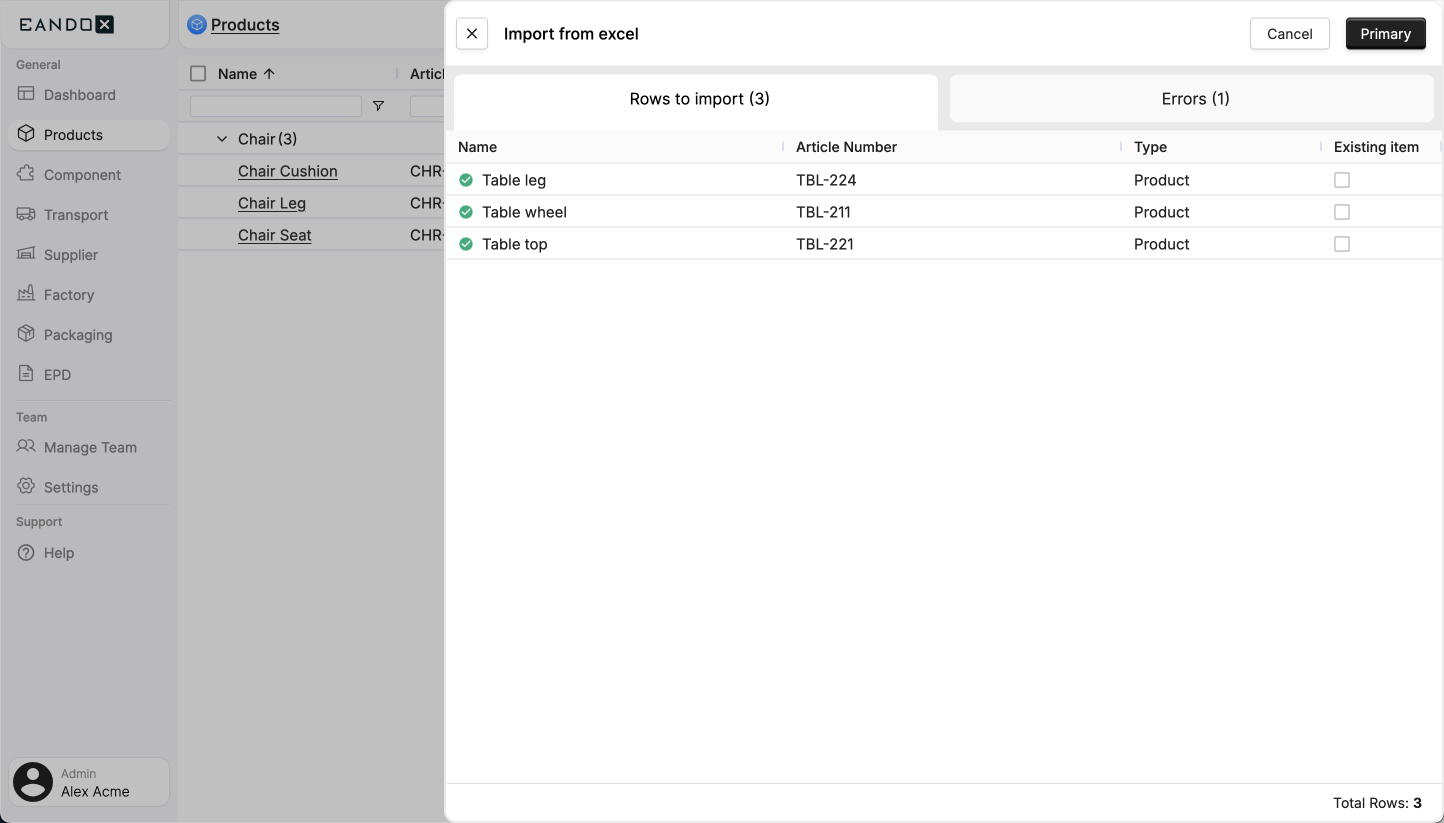
If there are any errors, they will show up in the Errors tab. Here you can see what the error is and where it occurred so that you have a chance to fix it.

Check the data
Rows with errors won’t be imported. Check the errors tab, fix any issues in your spreadsheet, and try importing again.
When you are ready to import the data, click the Import button in the top right corner. The data will start to import, and the LCA results will be calculated.
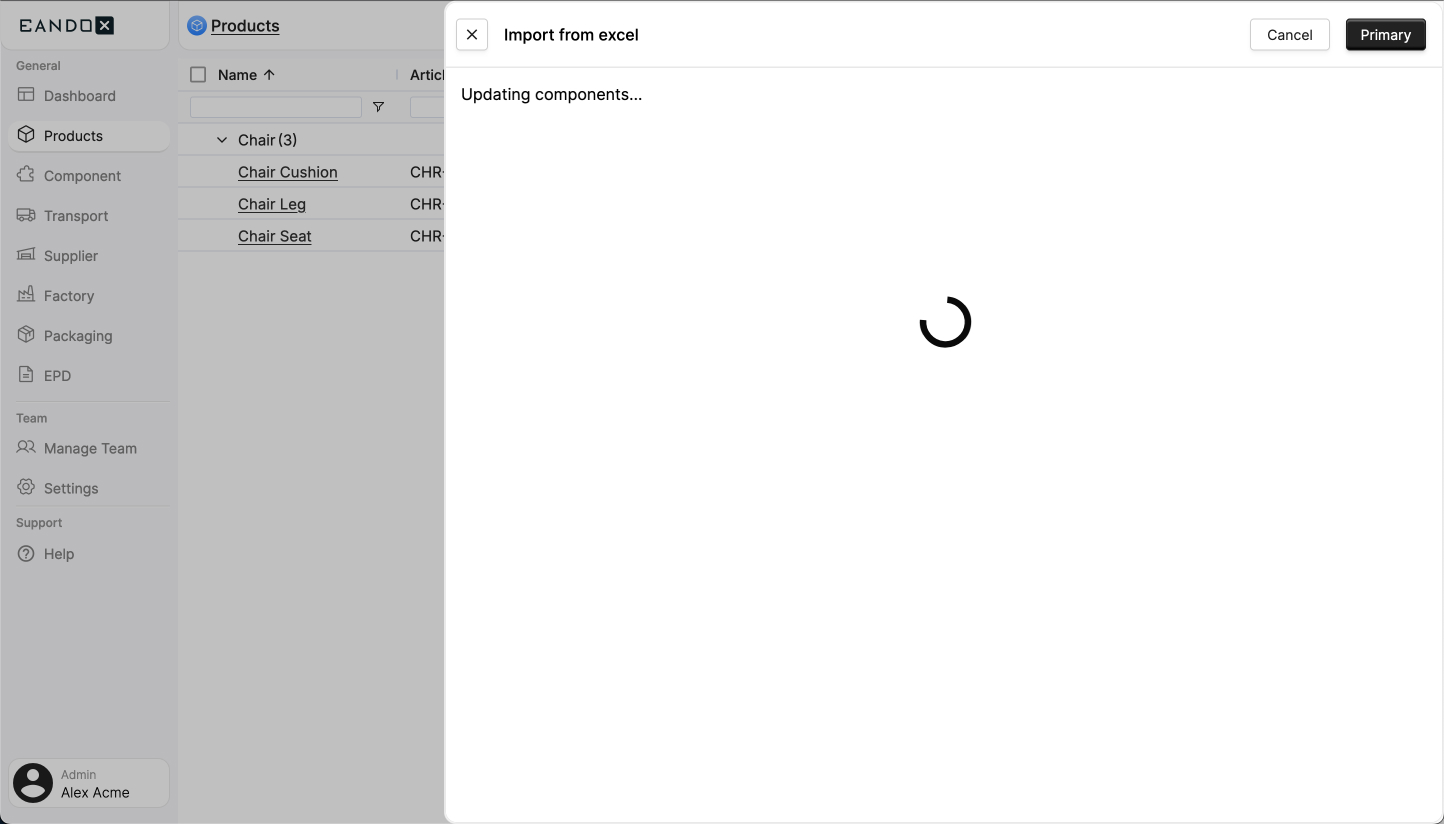
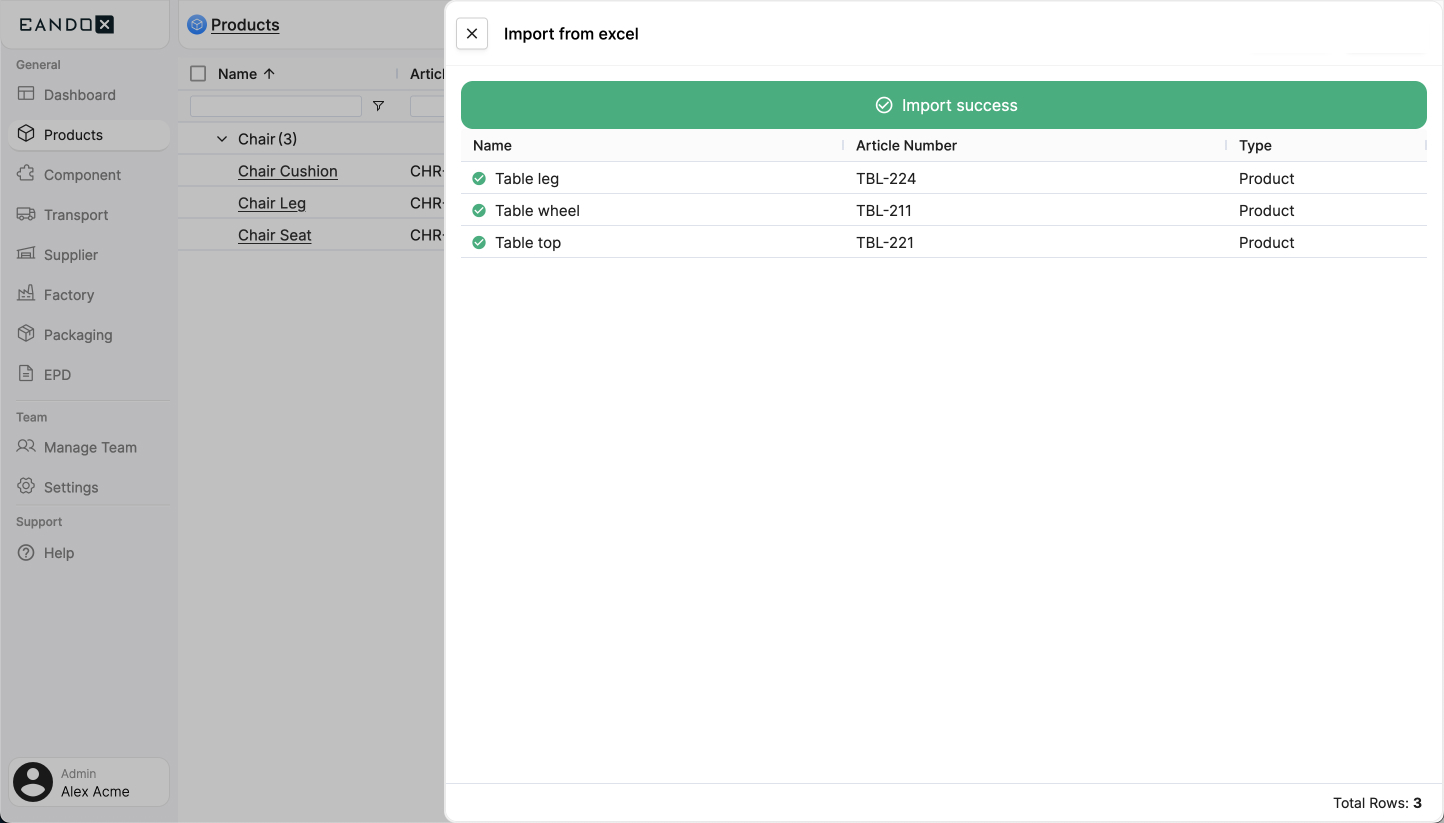
When the import is complete, you will see a success message. Click the X button in the top left corner to close the sidepanel.