
Managing supplier products
This page is an in-depth documentation on how to manage the supplier products you have added to your library. It will give you an understanding of the Supplier Products tab on the My Library page.
Related articles
This article assumes that you already have added supplier products to your library.
If your library is empty, you can read more about how to add supplier products here.
See your added supplier products
Navigate to the My Library page in the left navigation menu. The Supplier Products tab will be visible by default, and show a list of all the supplier products you have added from the Global Library.
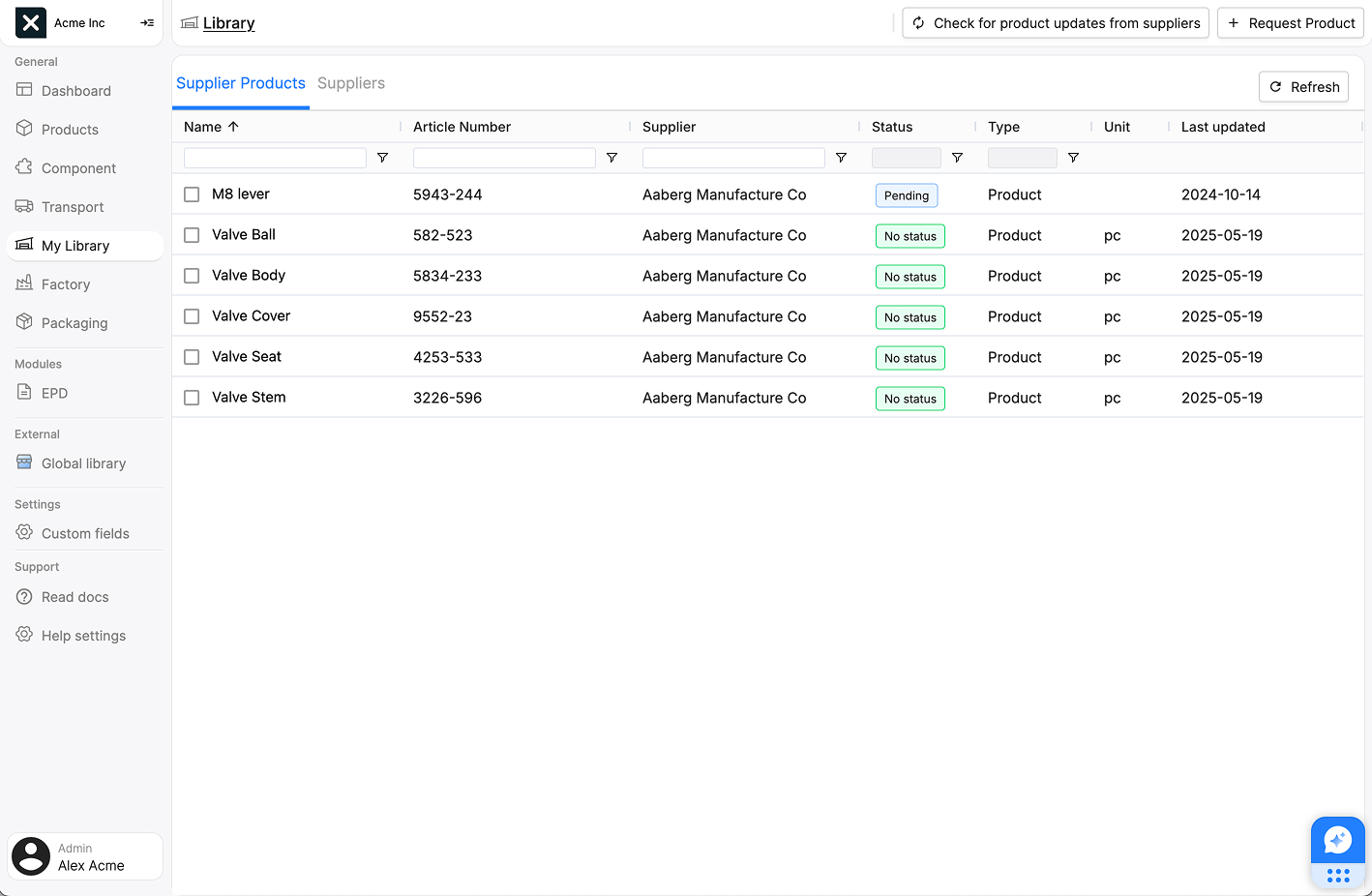
The list features the following columns:
| Field name | Description |
|---|---|
| Name | The name of the supplier product. |
| Article number | The article number of the supplier product. |
| Supplier | The name of the supplier. |
| Status | The status of the supplier product. Read more about it below. |
| Type | Where the product data originates from. Read more about it below. |
| Unit | The unit that this supplier product is measured in. |
| Last updated | The date that the product data was last updated. |
Sorting and filtering
The supplier products can be sorted by clicking on the column headers. Clicking on the same column header again will reverse the sorting order.
Some of the columns can be filtered by typing in the input field below the column header. The list will be filtered as you type.
Refreshing the list
At the top of the page you can find a Refresh button. This will refresh the list of supplier products, and make sure that you have the latest data on the items.
Caching
The list is cached for performance, but automatically updated with regular intervals. A manual refresh is only needed in rare cases, if you can't see recent changes you know should be there.
The supplier product sidepanel
To see the details of a supplier product, click on the name of the product in the list. This will open a sidepanel with all available data for the selected supplier product:
This article is about added products
The list in the Supplier Products tab also shows your product requests. Clicking the name of a product request will open a different sidepanel. Read more about it in the product request documentation.
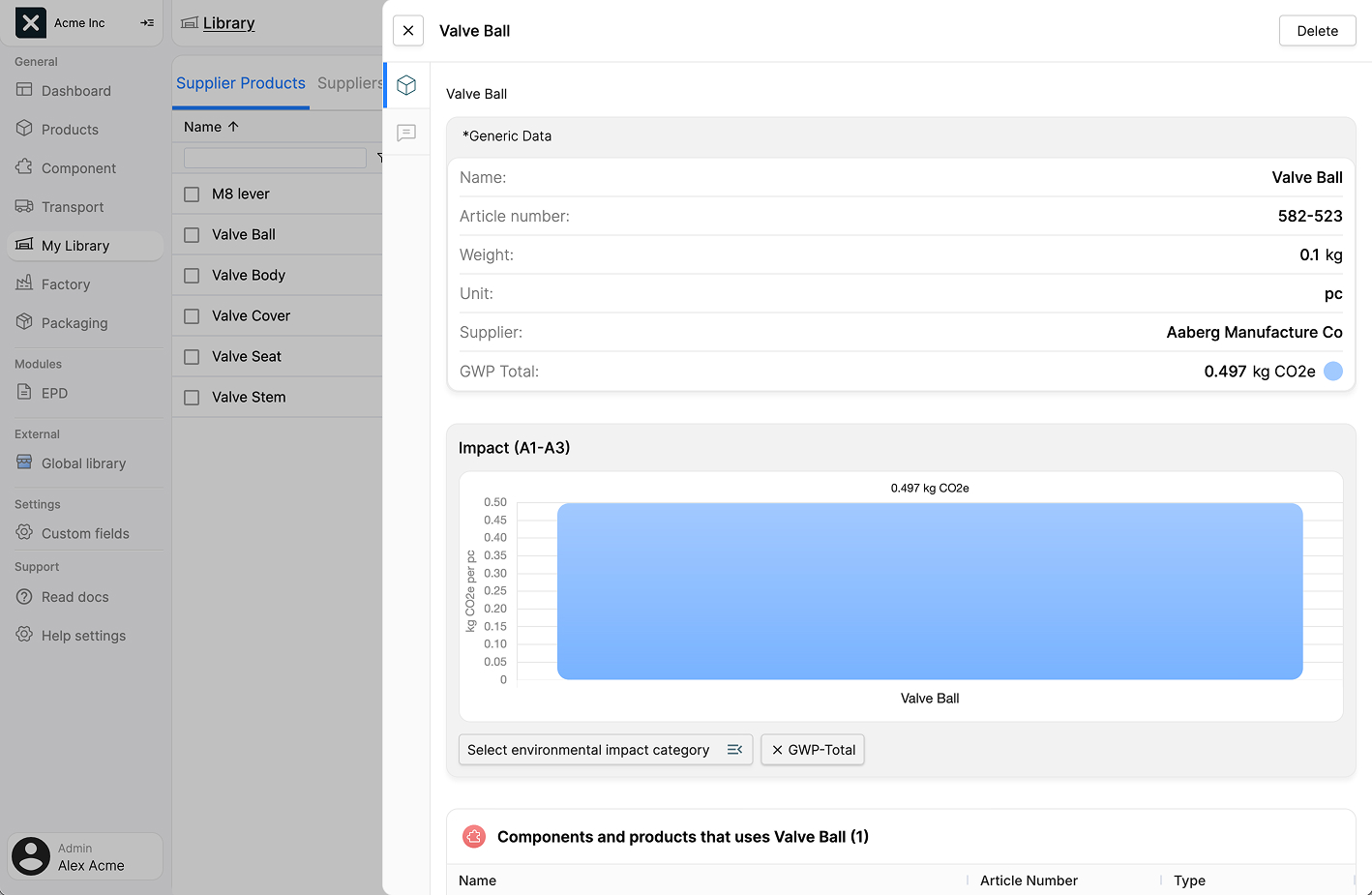
On the left edge of the sidepanel you can find two tabs:
1. Entity data
This tab shows the data of the supplier product, and is split into three sections:
Data: This section shows the data for the supplier product, such as the name, supplier and GWP total. Some of the fields may include generic data. These fields are marked with a
*.Impact: This section shows an impact graph of the supplier product. Read more about impact graphs here.
Usage: This section shows where the supplier component is used in your products, helping you track dependencies and assess how supplier changes might affect your products.
2. Comments
This tab lets your team add and manage private notes about the supplier product. These notes are only visible within your organization, and are not shared with other companies or suppliers.
Removing a supplier product
There are two ways to remove a supplier product (or product request) from your library: using the list view, or the sidepanel.
From the list view
Find the supplier product you want to remove in the list (on the My Library page), and hover over it. Then check the checkbox that appears to the left of the name. You can select multiple supplier products at once.
When you have selected at least one supplier product, you will see a menu bar appear in the page header. Click the Delete button to remove the selected supplier products. A confirmation dialog will appear, asking you to confirm the deletion.
From the sidepanel
Open the sidepanel for the supplier product you want to remove. At the top right of the sidepanel you will find a Delete or Cancel request button. Click it to remove the supplier product. A confirmation dialog will appear, asking you to confirm the deletion.
You can only remove unused supplier products
You can only remove a supplier product if it's not being used in any of your products. The deletion will fail if the product is still in use.
To find where a supplier product is used:
- Open the product's sidepanel and find the Usage section.
- Remove the component from each listed product
- Return to My Library to delete the supplier product
Product status
A supplier product can have one of three states:
No status: The default state. The supplier products is in your library, and no further actions needed.Pending: Indicates that this is a supplier product request, that is yet to be fulfilled by the supplierUpdate available: Indicates that new product data is available from the supplier. You can apply these updates to keep your products LCA current.
Product source
A supplier product's data can come from one of two sources: either directly from suppliers using EandoX, or from publicly available EPDs imported by our team. This source is shown in the type field:
Product: This type indicates that the product data was entered into the system by the supplier through EandoX.EPD: This type indicates that the product data was imported to the global library from a publicly available EPD, by the EandoX team.
There are several key differences between these types:
EPD products come from third-party verified public databases, giving them strong industry credibility. When you create an EPD in EandoX, using these pre-validated components speeds up verification since reviewers only need to focus on your product's unique elements.
However, products with the Product type typically contains more detailed data, and could therefore lead to more accurate LCAs. This granularity may also give you more insight into the environmental impact of your product.
Importing EPD's
EPDs can only be imported by the EandoX team. If you have an EPD you'd like to have available in the Global Library, please contact us at support@eandox.com.